









Overview #
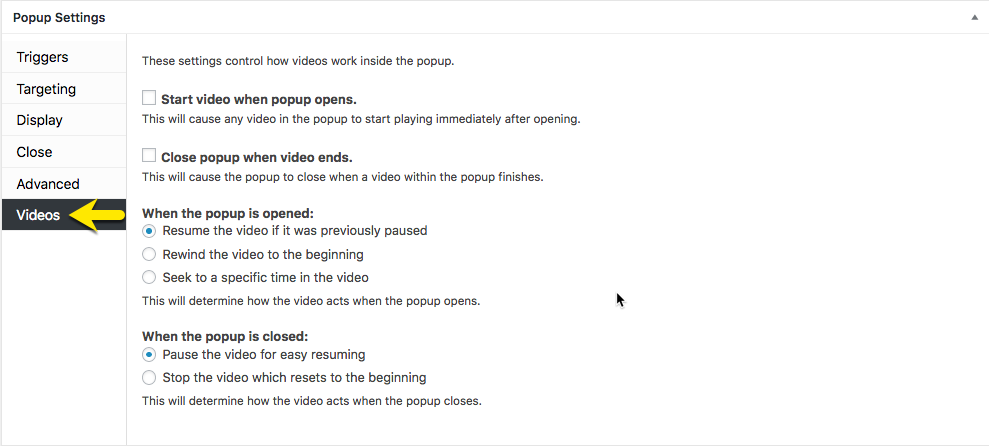 The Videos extension adds a Videos tab to the popup editor’s Popup Settings box. Video popup option settings are configured on this tab. The screenshot above displays the default option settings when the Videos extension is activated.
Videos Option Settings #
Start Video When Popup Opens (checkbox) #
Default: off (unchecked). When the checkbox is selected, a video will automatically start inside a popup when it is triggered. When selected, a second option setting is displayed.
Automatically Go Full Screen When Video Starts Playing (checkbox) #
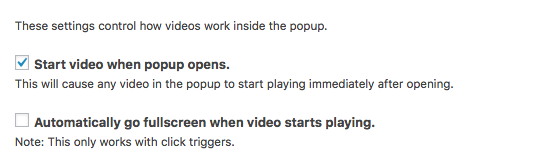
Default: off (unchecked). When the checkbox is selected, the video will display full screen once the popup is triggered.
Note: This feature only works with a Click Open trigger.
Close Popup When Video Ends (checkbox) #
Default: off (unchecked). When the checkbox is selected, the popup will automatically close when the video ends.
When the Popup is Opened (radio buttons) #
- Resume the video if it was previously paused ( default ) — If a visitor starts a video and closes the popup while the video is playing, it will resume playing when the popup is reopened.
- Rewind the video to the beginning — When the popup is opened or reopened, this feature will force the video to start from the beginning.
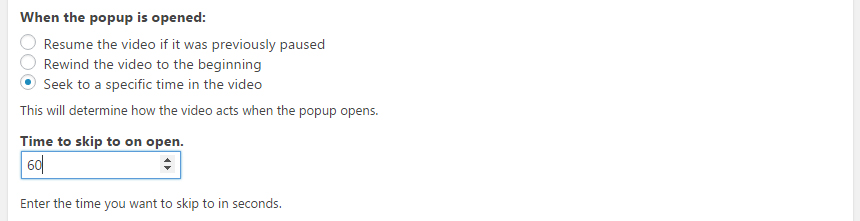
- Seek to a specific time in the video — Force a video to begin playing from a specific start time. This option displays a counter. Enter a video start time in seconds.

When the Popup is Closed (radio buttons) #
- Pause the video for easy resuming ( default ) — If a visitor closes a popup, the video will pause in place. When the popup is reopened, the video will resume from where it previously stopped.
- Stop the video which resets to the beginning — Completely stop the video when the popup is closed. This option will reset the video back to the beginning.
- Destroy the video player, generally not recommended — Destroys the video player after the popup is closed. Typically only used in special cases where extra setup may be required. This only destroys the player, so the popup will remain on the site, and the video URL can be called again.
Note: By default, the ‘destroy’ option is turned off in the Popup Settings box. It can be displayed and activated by removing the comment notation at ‘wp-content/plugins/pum-videos/classes/Admin/Popups.php’, line#125.


