









After you create your popup, you’re ready to create a popup trigger.
In this article, we look at:
For specific options for each trigger, check out our Triggers option settings guide.
For a full list of available triggers, head over to our Complete List of Popup Triggers guide.
What is a popup trigger? #
A popup trigger is an event that makes your popup appear. Read the full definition in our glossary for more details.
If you want your visitors to see your popups, you’ll need triggers for your popups to display! Let’s see where you create and edit popup triggers.
Where can I find my popup triggers? #
From the WordPress admin, navigate to Popup Maker > All Popups in your admin side menu.
If you don’t have any popups yet, click Create Popup in the admin side menu. If you already have a popup, hover over the popup you want to edit and click Edit.

Scroll down to the Popup Settings area below the popup content editor. Click on the Triggers tab if it’s not highlighted.
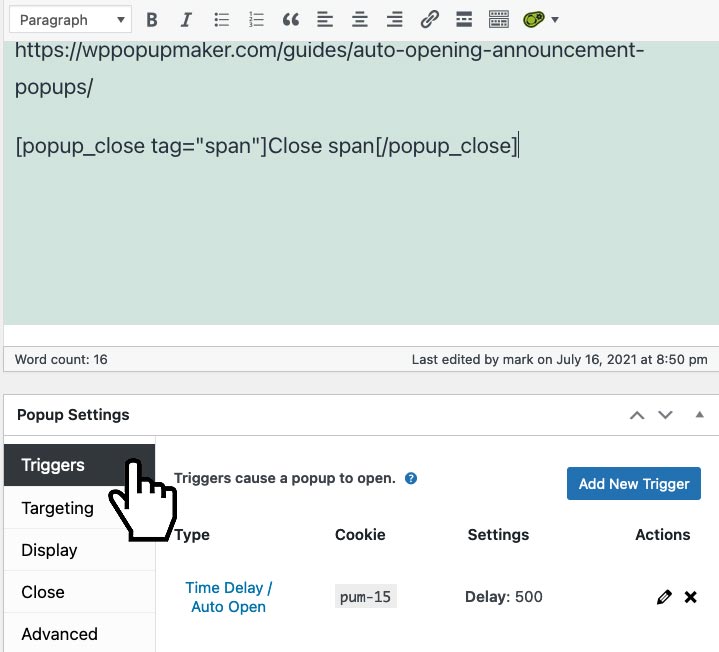
Once you’re there, you can click Add New Trigger to add your first trigger. If you already have a trigger(s), you can edit and delete it if needed.
Tips on Using Triggers #
- You can have 1 or more triggers on the same popup. if you need a popup to automatically display first, but also launch from a button click (e.g., sign up form), no problem!
- You can also have multiple triggers of the same type. For example, you can have a Click Open trigger for your popup tied to a navigation menu item at the top of your page. Then, you can have another Click Open trigger tied to a button lower in the page.
- While you’re creating your trigger, you’ll get prompted to set up an optional cookie. Setting up a cookie will stop the popup from re-displaying over and over.
You can skip the cookie setup completely if you want your popup to display all of the time. Or, you can go back to add a cookie later if you change your mind.
- Triggers can check for 1 or more cookies before launching.
What’s next? #
Are you ready to add a trigger? Bring up our Add a Popup Trigger guide for step-by-step instructions.
Do you still have questions or want to learn more about popup triggers? Visit our complete Beginner’s Guide to Popup Triggers.
If you’re having trouble with a popup trigger, make sure you read our troubleshooting guide.


