







Brand Assets

Thanks for your interest in affiliating with Popup Maker

Below are a few guidelines for using Popup Maker’s brand resources, please take a moment to familiarize yourself with them. You can download individual assets in each section, or you can download everything all at once below.

Download All Assets

Our Name is Popup Maker

Popup Maker is two words. Always capitalize the P and the M.

Brand Name

PopupMaker

Not like this.

popup maker

Not like this.

POPUP MAKER

Not like this.

popupmaker

Not like this.

Popup Maker Colors

These are Popup Maker’s brand colors – copy the color codes below.

Brand Colors

Primary

#1dbe61

Light

#21db6f

Base

#1dbe61

Popup Maker Logo

These are Popup Maker’s marks & logos – copy or download in PNG/SVG format.

Logos & Marks

Not yet an affiliate?

Become an Affiliate
Earn commission when you recommend Popup Maker to your friends, fans & clients.
Sign Up

Popup Maker Historical Branding

These are Popup Maker’s past marks, logos & colors. Here for fun and archives.

Historical Marks, Logos & Colors
Popup Maker Logo - Archived
Popup Maker - Mark - Archived

Primary

#9ab927

Light

#a8cb29

Base

#2d2d2d

Gray 1

#626262

Gray 2

#cacaca

Gray 3

#dfdfdf
View Categories

Theme Settings — Close tab / Border category

Overview #

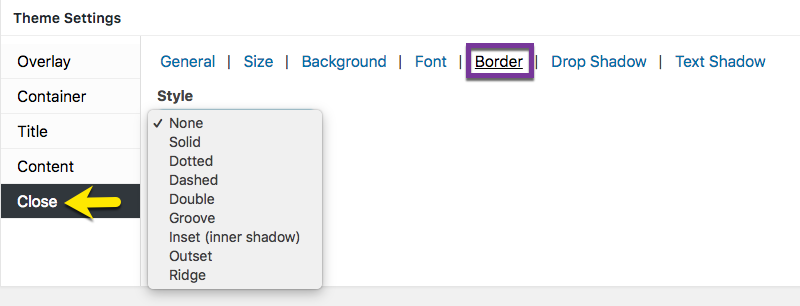
Figure 1 (above). View of the Close >> Border option settings for the Default Theme.

The  Close option tab controls the styling of the popup close button.  The Border category styles the perimeter of the close button.  

Property Descriptions #

  • Style controls the border pattern applied to the border of the close button.  

Note: The  Style property must be set to a value other than ‘None’ to edit the border  Color and  Thickness properties. 

  • Color controls the color applied to the selected border.  Default (all themes): white; hex number: #ffffff.
  • Thickness controls the width applied to the selected border.  Default (Light Box theme): 2 px; all other themes: 1 px.

#

Preview Close Option Settings in the Customizer #

When editing the Close button features, use the customizer located to the right of the   Theme Settings box to preview your changes. 

Select the Update button to save any changes to popup theme settings. Otherwise, any changes will be lost after you leave the page. 

#

Leave the first comment

This site uses Akismet to reduce spam. Learn how your comment data is processed.