- Heads Up
- Displaying 2 Popups at a Time Example
- 1) Create or edit two popups
- 2) Turn off the overlay and turn on stackable
- 3) Change the popup size to Small - 40%
- 4) Make each popup open in different positions on the screen
- 5) Make each popup have a fixed position
- 6) Use the same targeting conditions for both popups
- 7) Use the same popup theme for both popups
- Troubleshooting
- Tip 1) Try changing the popup position locations again
- Tip 2) Make sure you turn off the overlays
- Tip 3) Try changing the popup sizes again
- Tip 4) Double-check that your popups are stackable
- Tip 5) Try making your content smaller
- Tip 6) Check for a CSS conflict
- Tip 7) Save your changes and clear ALL caches
Popup Maker displays 1 popup at a time by default. We think 1 popup on a post or page at a time gives your visitors the best experience. However, we understand that sometimes you need to display more than 1 at the same time.
If you want need to display two or more popups at the same time, you can make your popups stackable. Stackable is a special Popup Maker popup setting that lets more than 1 popup display on the same post or page at the same time.
Heads Up #
We don’t usually recommend displaying more than 1 popup at the same time on the same post or page. Here’s why:
- Too spammy: Apart from information overload, your site might seem spammy. Make sure you have a good reason to do this, and do this sparingly.
- Not everyone uses a big screen: Multiple popups on a desktop or big monitor might look fab. But, if 50% of your visitors use their phones, they’ll see a stack of popups with only the top popup visible at first.
One other option is using a sequence of popups one after another. See the related articles at the end of this guide to learn more.
Displaying 2 Popups at a Time Example #
As an example of what to do and what to avoid, let’s display 2 popups at the same time on the same post or page. Follow these instructions for both popups.
1) Create or edit two popups #
Either create 2 new popups or edit 2 existing ones.
2) Turn off the overlay and turn on stackable #
Turning off the overlay and turning on stackable for each popup is the next most important step. So, let’s change those settings right away.
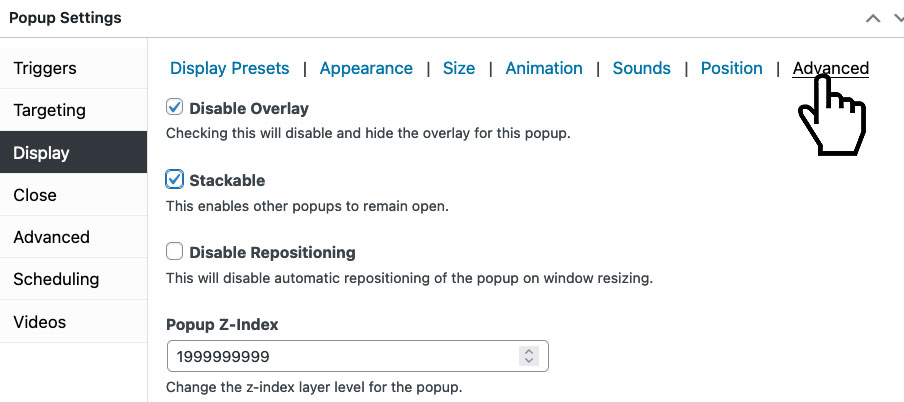
Go to Popup Settings > Display > Advanced.
Check the Disable Overlay and Stackable checkboxes. See the screen capture below to see what those settings look like.
3) Change the popup size to Small – 40% #
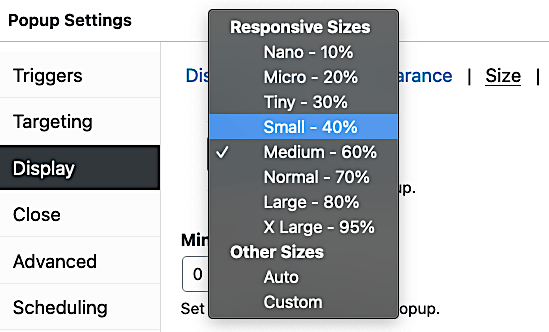
Go to Popup Settings > Display > Size. Change the popup size from Medium – 60% to Small – 40%. This should allow both popups to display on a desktop-size screen without overlapping each other.
4) Make each popup open in different positions on the screen #
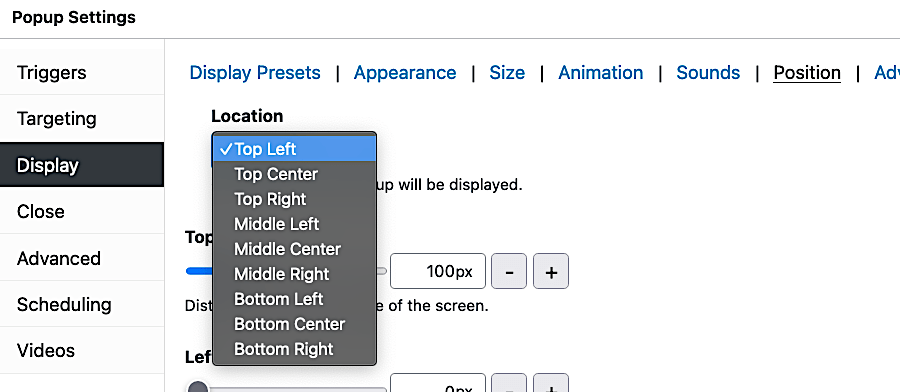
Go to Popup Settings > Display > Position. In the Location dropdown, select different locations for each popup.
For example, set the first popup to Top Left and the second to Top Right.
5) Make each popup have a fixed position #
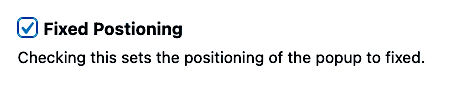
Go to Popup Settings > Display > Position. Check the Fixed Positioning checkbox.
6) Use the same targeting conditions for both popups #
If you didn’t add any targeting conditions, you can skip this step.
If you do have targeting conditions for your 2 popups, make sure the conditions are exactly the same for both popups. Otherwise, they might not display on the same page at the same time.
Under Popup Settings > Targeting, set the same targeting conditions for both popups.
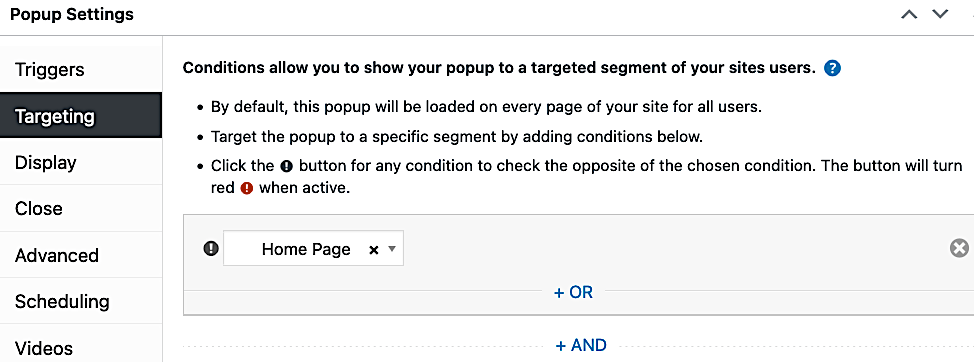
In the screen capture above, the popup is targeting the Home Page only. That means the other popup should also target the Home Page.
Again, if you don’t have any targeting set up, you can leave this alone. By default Popup Maker targets all posts and pages for your popup when you have no targeting conditions set up.
7) Use the same popup theme for both popups #
Under Popup Settings > Display > Appearance, select the same theme for both popups. Using the same theme keeps things consistent and easier to manage when displaying multiple popups at the same time.

In the screen capture above, the popup is using the Light Box theme. So, the other popup should use the Light Box theme too.
Troubleshooting #
If your popups are still not “playing nice” together (i.e., blocking or hiding each other), try these 6 tips.
Tip 1) Try changing the popup position locations again #
For either 1 or both popups, go back to Popup Settings > Display > Position. Try different locations until both popups display properly at the same time.
Tip 2) Make sure you turn off the overlays #
At the time of writing, having overlays turned on when displaying multiple popups at the same time doesn’t work. You might see some weirdness, like no overlays showing up or even one of the popups not launching.
To fix that, go back to step 2 above.
Tip 3) Try changing the popup sizes again #
In step 3 above, we went to Popup Settings > Display > Size and changed the default Medium – 60% to Small – 40%. Try going even smaller for 1 or both popups.
Tip 4) Double-check that your popups are stackable #
Go back to Popup Settings > Display > Advanced.
Make sure to check the Stackable checkbox.
Tip 5) Try making your content smaller #
Maybe you’ve got just too much content. Try a lower word count for both popups. If you’ve images, make them smaller, or maybe don’t use them. Lastly, remove any whitespace you don’t need (e.g., padding and extra line returns).
Tip 6) Check for a CSS conflict #
Sometimes, displaying multiple popups at the same time leads to a CSS conflict. You’ll know if this happens when you’ve done everything correctly, but one or both of your popups don’t appear. To top it off, your page might freeze up.
If this sounds familiar, check out our guide Your Popup Is Not Displaying on Your Homepage (or Another Page).
Tip 7) Save your changes and clear ALL caches #
Make sure you publish or update your popup to save your setting changes. Always clear all of your caches and use a private or incognito browser window to test your changes.