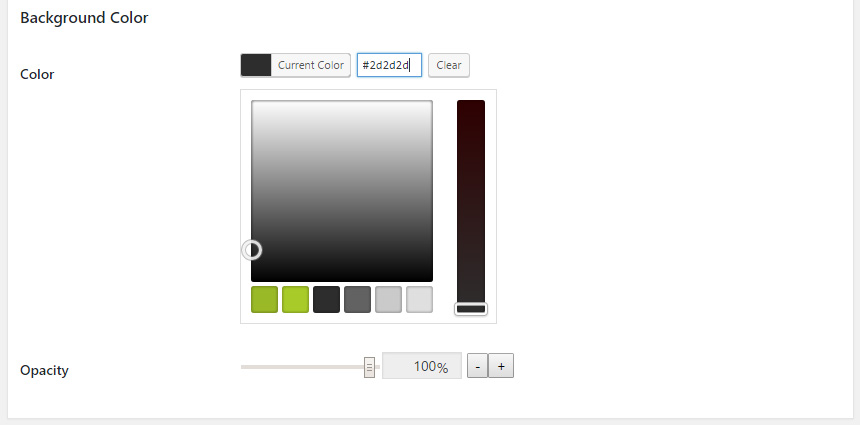
Preemptively setting up color presets can you save you a lot of time in the long run. This will allow you to very quickly pick and choose your colors while setting up your Popup Themes. After installing and activating the Advanced Theme Builder plugin extension, you’ll have access to the Color Presets Menu within the plugin admin area.
To access the Color Presets Menu, go to the WordPress admin and navigate to:
Popup Maker (plugin menu) >>
Settings (plugin submenu) >>
Extensions (option tab) >>
Extension Settings (category).
If you have more than one extension installed, you may have to scroll down to find the Advanced Theme Builder section.
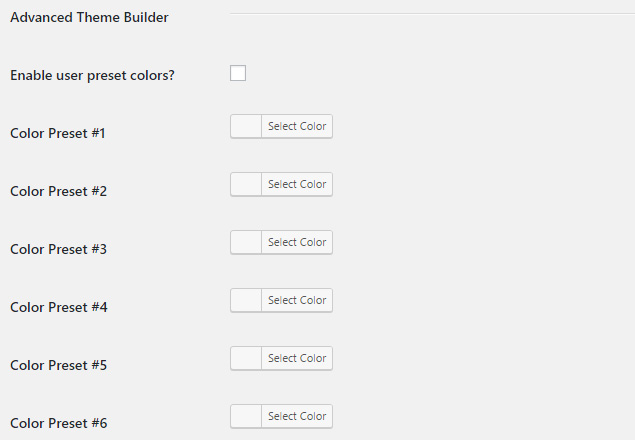 Start by checking the Enable User Preset Colors box, then select your presets using our Color Picker.
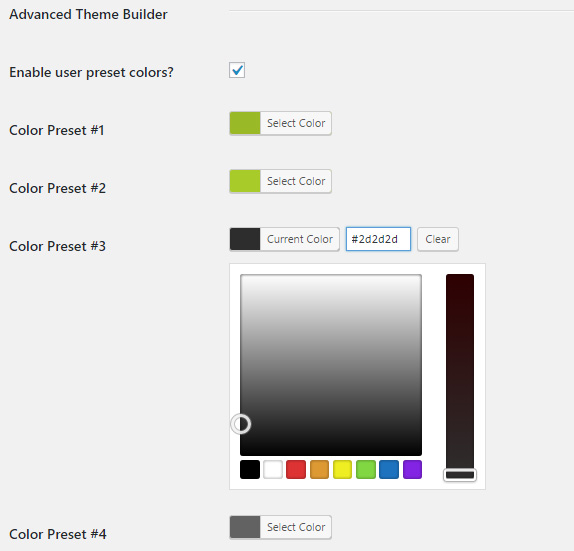 Once you have all of your presets setup, scroll back to the top of the page and click Save. You’ll then have access to them on-demand whenever you use our Color Picker while editing your Themes and popups.
Find your Color Presets at the bottom of the Color Picker as seen in the screenshot below: