









- Step 1. Add New Plugin
- Step 2. Click Search Plugins and type "popup maker"
- Step 3. Click Install Now, then Activate for Popup Maker
- Step 4. Click Popup Maker > All Popups
- Step 5. Click Edit under Example: Auto-opening announcement popup
- Step 6. Change the popup headline (optional)
- Step 7. Change the content
- Step 8. Keep the default Time Delay / Auto Open trigger and its On Popup Close cookie setting
- Step 9. Keep the default Home Page targeting rule
- Step 10. Click Popup Enabled and then Update to go live
- Step 11. Take it for a test drive
- Step 12. Celebrate 🎉
- What's Next?
Actually, we’re going to cheat and use the example popup that comes with Popup Maker. Don’t worry. That still counts as making your first popup 😉
Note: The example popup is an auto-opening (or time delay) popup. If you need to make a click-opening popup after this tutorial, learn how in our beginner’s guide to triggers.
Let’s start!
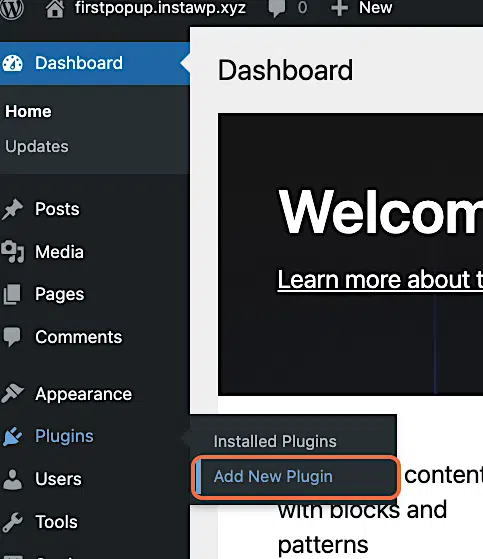
Step 1. Add New Plugin #
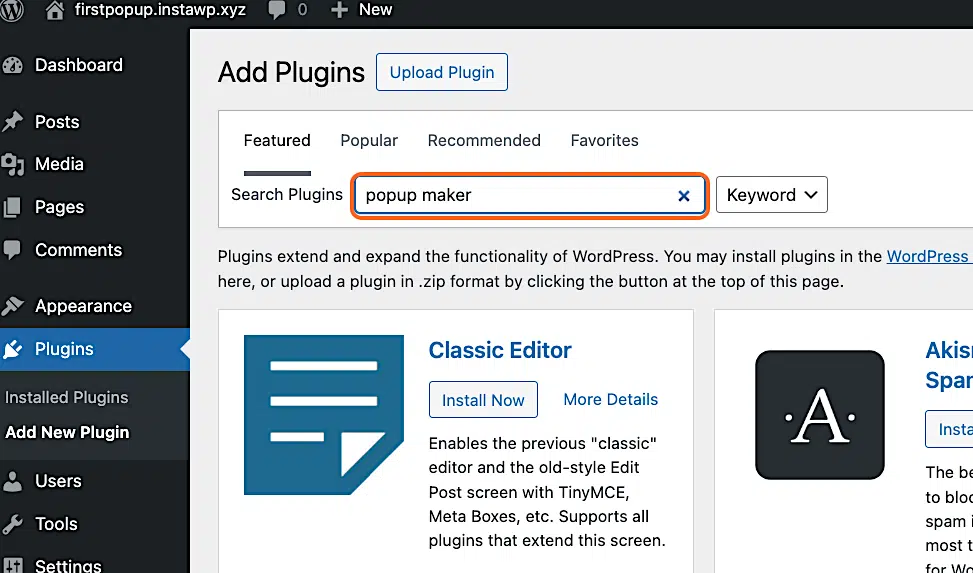
Step 2. Click Search Plugins and type “popup maker” #
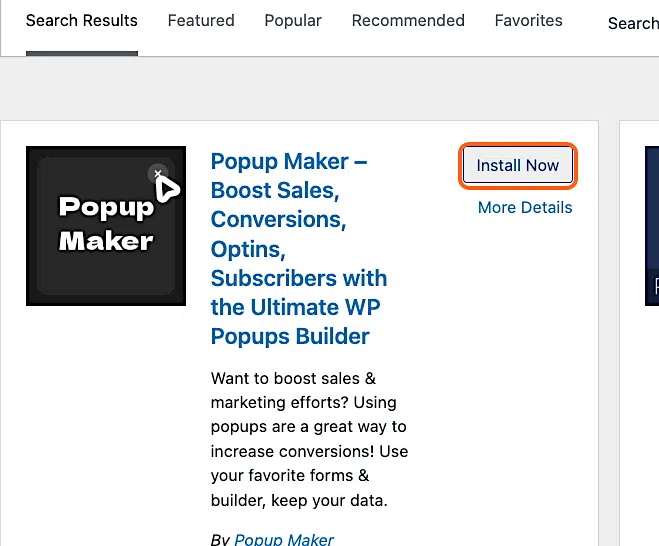
Step 3. Click Install Now, then Activate for Popup Maker #
Step 4. Click Popup Maker > All Popups #

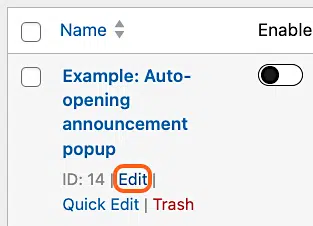
Step 5. Click Edit under Example: Auto-opening announcement popup #
Step 6. Change the popup headline (optional) #
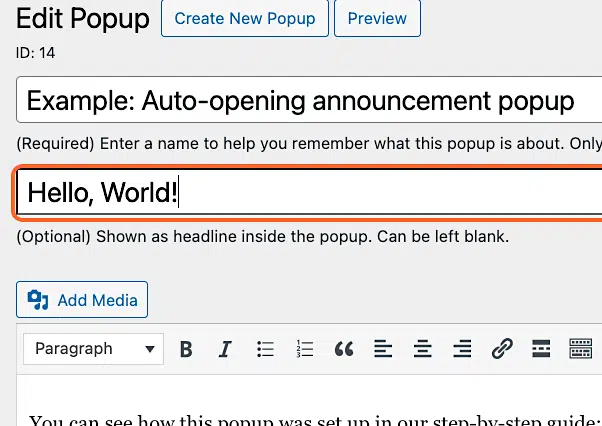
Step 7. Change the content #

Step 8. Keep the default Time Delay / Auto Open trigger and its On Popup Close cookie setting #
Before you play around with other trigger types, read our Add A Popup Trigger guide.

Step 9. Keep the default Home Page targeting rule #
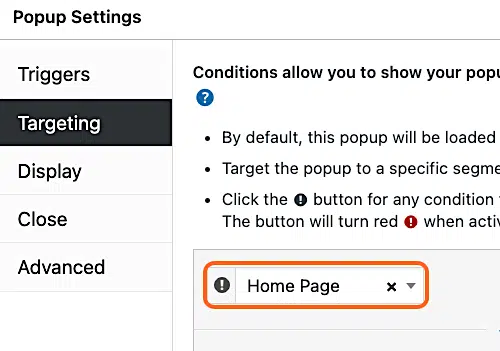
If you’re feeling comfy, you can try different targeting rules.
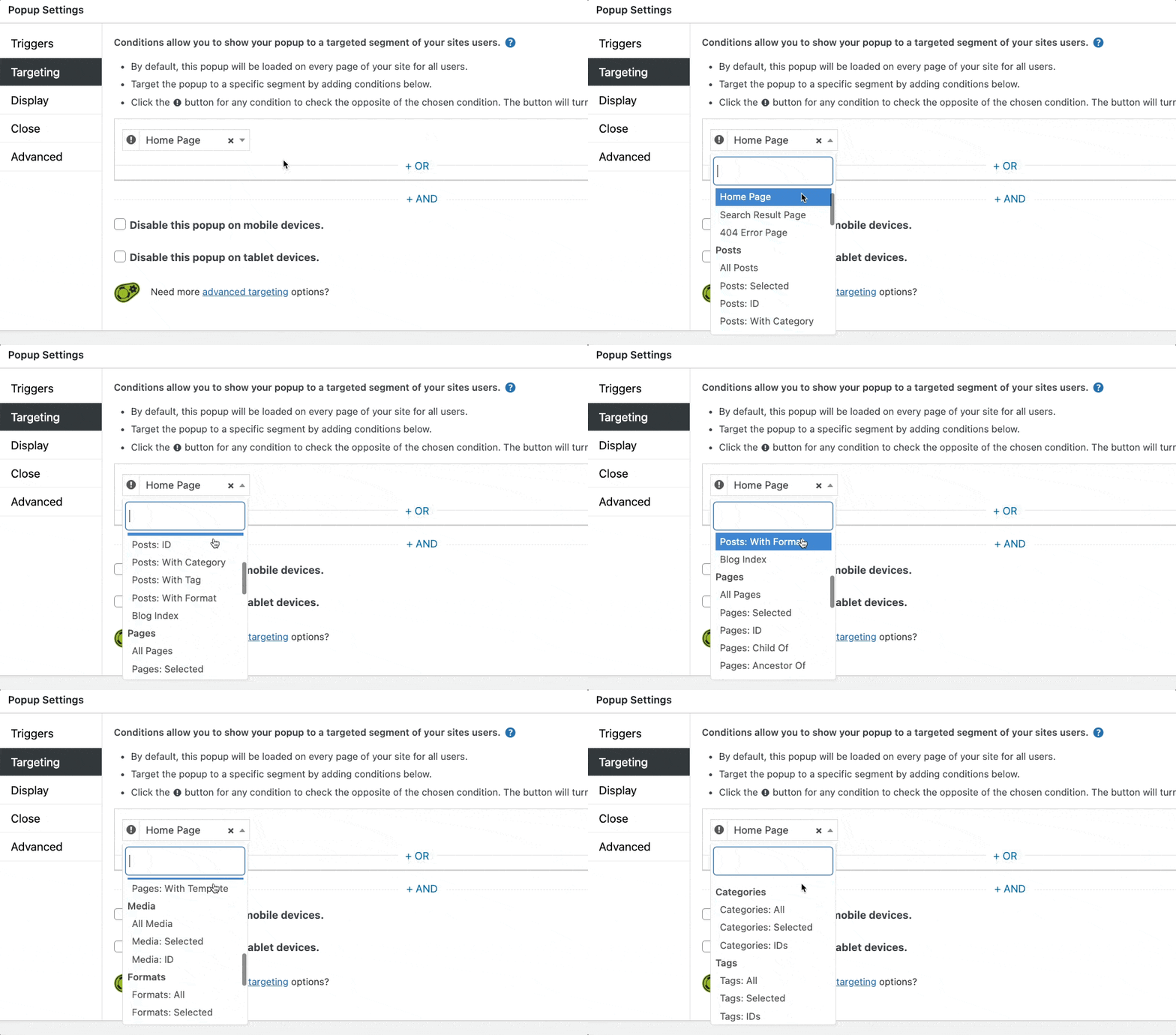
Step 10. Click Popup Enabled and then Update to go live #

Step 11. Take it for a test drive #
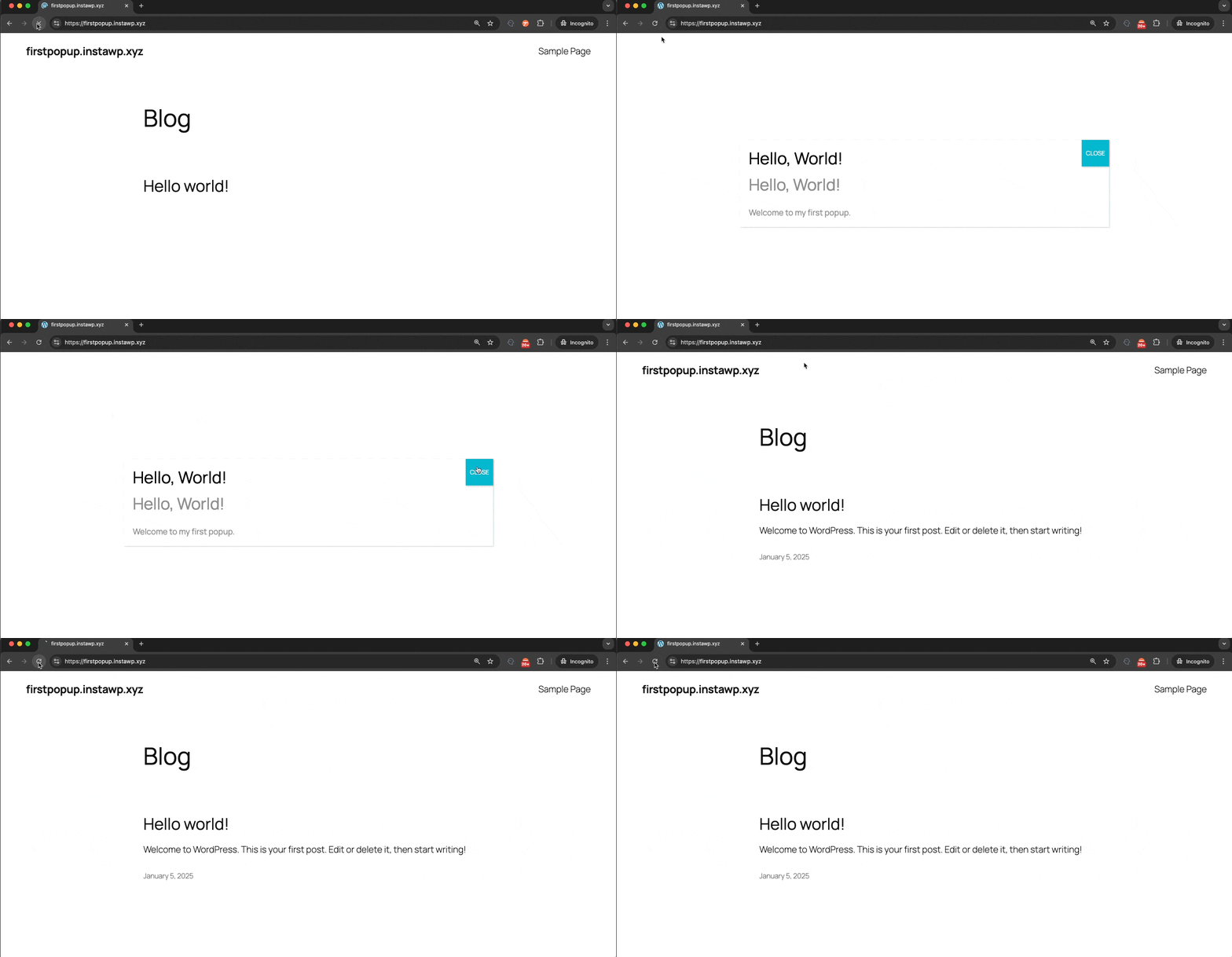
Go to your homepage. After the popup opens, click CLOSE. That will create a browser cookie, so you won’t see the popup for 1 month (default time).
If you reload the homepage, the popup won’t display again until you delete the cookie from your browser or open a new Incognito window.
Step 12. Celebrate 🎉 #
You did it! Give yourself a pat on the back and high fives all around.
What’s Next? #
If you’re hungry for more, be sure to check out the following guides:
- Read Add A Popup Trigger for more details on adding popup triggers.
- What if you need a popup to open with a click or form submission? Read the Usage Examples in A Beginner’s Guide to Popup Triggers for creating an Auto Open, a Click Open, and a Form Submission trigger (3 most popular triggers).
- Watch a short 6-minute video tutorial to learn how to launch a popup when you click on any element on your post or page.
- Visit our beginner-friendly troubleshooting guide to learn how to fix the most common popup problems we see.
- Learn what is a browser cookie, how Popup Maker uses cookies, and safe practices for cookies in our What is a Cookie? blog post.


