









If you’ve got a popup that has an overlay and your browser window has a vertical scrollbar, you might see your page shift to the side when the popup displays. Keep your eye on the top menu in the example below.

What Causes That Shifting? #
A common problem with popups is the dreaded double scrollbar effect on a page. Popup Maker is smart enough to automatically prevent double scrollbars from appearing.
Unfortunately, many themes might still think there’s an extra scrollbar and shift the page to make room for it. That’s why it looks like your site shifts for no reason when a popup displays and closes.
If you want a deeper dive into the details, please visit our How to Display Different Popup and Overlay Scroll Effects in Combination doc.
Solutions #
1) Disable the popup’s overlay #
If your popup doesn’t need an overlay, this is the fastest and easiest fix.
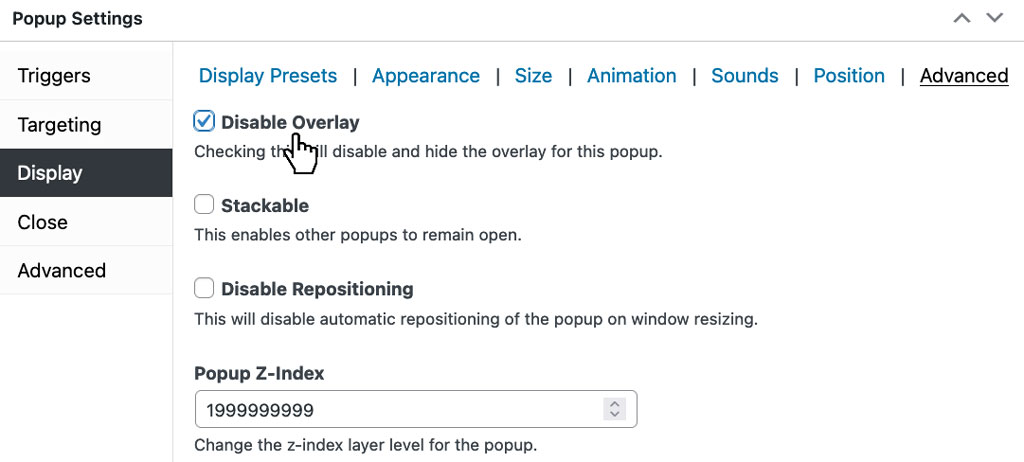
Edit your popup and scroll down to the Popup Settings under the popup editor.
Click Display on the side menu.
Click Advanced on the top tabs.
Click Disable Overlay.
Publish or Update your popup to save the changes.
2) Set the Body Padding Override to 0px #
If you want to keep your popup’s overlay, then give this a try.
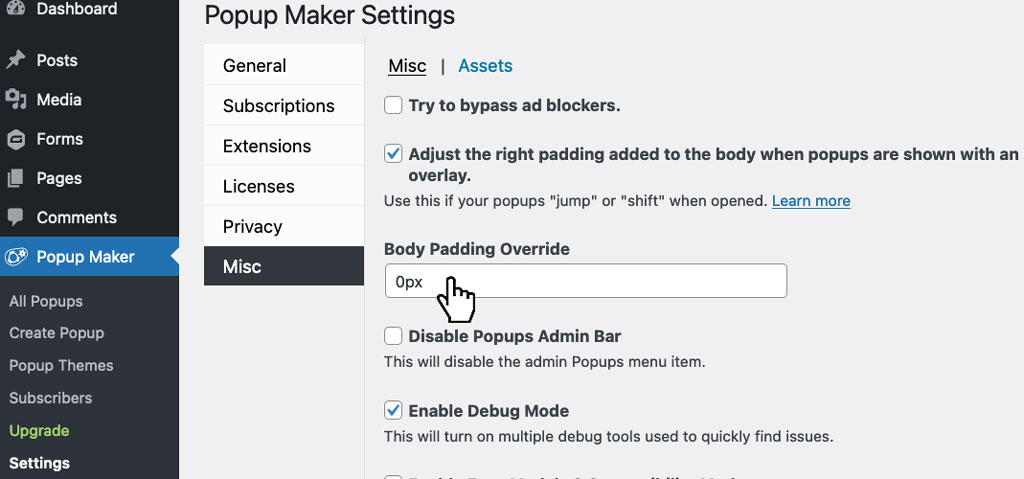
From your WordPress admin area, go to Popup Maker > Settings > Misc.
Click Adjust the right padding added to the body when popups are shown with an overlay.
Enter 0px in the Body Padding Override field.
Click Save.
Here’s a demo of the result. Keep an eye on the top menu again.

Yay! No page shifting or jumping this time.
3) Use custom CSS #
If all else fails, there’s always custom CSS. Since every site is different, you’ll need to inspect the page where your popup shifts the content.
Try to find out what’s happening with your page body’s right padding. You might need to tweak the padding size, use inherit, or even force your setting to take effect by using !important as a last resort.
The example custom CSS below forces the page’s right padding to be 0px;
	html.pum-open.pum-open-overlay.pum-open-scrollable body > [aria-hidden] {
		padding-right: 0px !important;
	}
If you’re new to CSS, check out these guides.
- What is CSS: https://5fb604e7-99fd-4dcb-a5ef-268749498baa.express.conves.io/docs/getting-started/popup-maker-glossary-of-terms/#css
- Getting Started with Custom CSS: https://5fb604e7-99fd-4dcb-a5ef-268749498baa.express.conves.io/docs/getting-started-with-custom-code/getting-started-with-custom-css/
Getting Help # #
If you need help with your popup, we’re only a click away.
Head over to our support page to submit a ticket, join our Facebook group, or check out all of our resources.


