







Brand Assets

Thanks for your interest in affiliating with Popup Maker

Below are a few guidelines for using Popup Maker’s brand resources, please take a moment to familiarize yourself with them. You can download individual assets in each section, or you can download everything all at once below.

Download All Assets

Our Name is Popup Maker

Popup Maker is two words. Always capitalize the P and the M.

Brand Name

PopupMaker

Not like this.

popup maker

Not like this.

POPUP MAKER

Not like this.

popupmaker

Not like this.

Popup Maker Colors

These are Popup Maker’s brand colors – copy the color codes below.

Brand Colors

Primary

#1dbe61

Light

#21db6f

Base

#1dbe61

Popup Maker Logo

These are Popup Maker’s marks & logos – copy or download in PNG/SVG format.

Logos & Marks

Not yet an affiliate?

Become an Affiliate
Earn commission when you recommend Popup Maker to your friends, fans & clients.
Sign Up

Popup Maker Historical Branding

These are Popup Maker’s past marks, logos & colors. Here for fun and archives.

Historical Marks, Logos & Colors
Popup Maker Logo - Archived
Popup Maker - Mark - Archived

Primary

#9ab927

Light

#a8cb29

Base

#2d2d2d

Gray 1

#626262

Gray 2

#cacaca

Gray 3

#dfdfdf
View Categories

Age Verification Introduction

This is an introduction to our Age Verification Modals Extension. There are many links herein that will allow you to dive further into all of the features and settings of this expansive extension.

If you’re not interested in learning the ins-and-outs of the extension, then you may be interested in our  Age Verification Modals: Quick Start Guide.

Creating Age Verification Forms #

Create your Age Verification Forms from the Popup Editor using the Popup Maker Shortcode Button and clicking Age Verification Form. You can see this process in action in the following video – if you want to read more technical stuff about the Age Verification Shortcode and arguments, read  this doc, or check the related articles at the bottom of the page:

Keep in mind that the Age Verification Shortcodes will create the Age Verification Forms and buttons for you automatically, but beyond that, it is up to you to create your own message to the user explaining your age requirements that best suits your needs.

Creating or editing a Age Verification Form will show the Settings Window, which includes the General Settings, Appearance Settings, and Label Settings.

Form General Features and Settings #

The General Settings of the Age Verification Form includes Form Type (Birthdate or Enter/Exit), Exit URL, Required Age, and more.  Learn more.

Form Appearance Features and Settings #

Form Appearance Settings determine what your Age Verification Form looks like on the front of your site.  Learn more.

Form Label Features and Settings #

Each part of the Age Verification Form has a Label. These settings allow you to control the Labels.  Learn more.

Creating Age Verification Triggers #
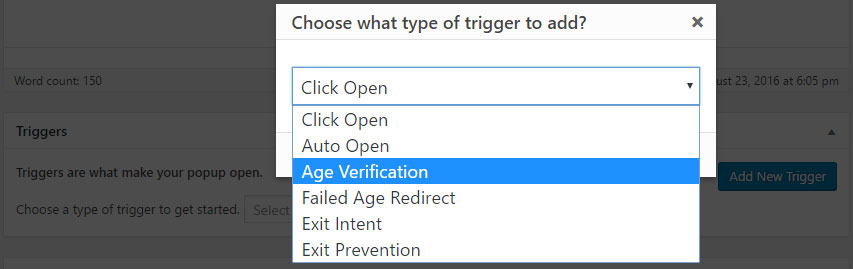
The Age Verification Trigger acts like a beefier version of the Auto Open Trigger without a Close Button – this is the bread and butter of Age Verification Modals. To make it perfect, we’ve also included the Failed Age Redirect Trigger.  Learn more about both of these Triggers.

Creating Age Verification Cookies #

These specifically designed Cookie Creation Events (Age Verified, Age Verification Failed, and Age Verification Lockout) are made to work in tandem with the Age Verification Triggers above. They give your site the absolute, rock solid security you are required to have. Never leave home without them.  Learn more all three Age Verification Cookie Creation Events.


Age Verification Modals: Introduction #

Overview #

The Age Verification Modals (AVM) plugin extension to Popup Maker allows users to add an age verification form to a popup. The plugin allows users to add either type of age verification form: 
  • a set of enter / exit buttons; or 
  • a birth date input form. 
Users must add their own content to the popup to place either age verification form in context.
The enter / exit buttons require visitors to acknowledge that they meet the minimum required age to view the page or site content. The birth date form requires visitors to submit their birth date. Visitors that select the exit button, or who enter a birth date less than the required age are directed away from the page on which the popup appears.  Plugin users have the option to redirect visitors to another page internal to the site or an external URL ( also known as an ‘Exit URL’ ).

Plugin Shortcode, Triggers, and Cookies #

The plugin extension enables a shortcode, an additional triggers and cookies in the Popup Editor.  The age verification forms are set in the popup with an Age Verification Form shortcode. 
Two triggers manage the display of each popup:  Age Verification and Failed Age Redirect. The Age Verification trigger manages the popup display, while the Failed Age Redirect trigger manages visitor redirection away from the page on which the popup appears. 
Three cookies control repeat popup display and site access for return visitors. The cookies include: 
  • Age Verified;
  • Age Verification Failed; and 
  • Age Verification Lockout. 
Cookie selection depends on the options selected within the Age Verification Form shortcode. Each popup trigger must be linked to a cookie to manage repeated popup display and return visitor access to the site. 
Configure the AVM plugin in the following order: 
1. Set the shortcode in the Popup Editor;
2. Set the triggers in the Popup Settings box (located below the content editor).
3. Set the cookies in the Popup Settings box. 

Refer to the related articles below for guidance on the setup of the plugin shortcode, triggers, and cookies.

//  Age Verification — Shortcode: Age Verification Form  ( https://5fb604e7-99fd-4dcb-a5ef-268749498baa.express.conves.io/docs/age-verification/age-verification-shortcode-age-verification-form/ )

// Age Verification — Triggers and Cookies Setup

Leave the first comment

This site uses Akismet to reduce spam. Learn how your comment data is processed.