Thanks for your interest in affiliating with Popup Maker
Below are a few guidelines for using Popup Maker’s brand resources, please take a moment to familiarize yourself with them. You can download individual assets in each section, or you can download everything all at once below.
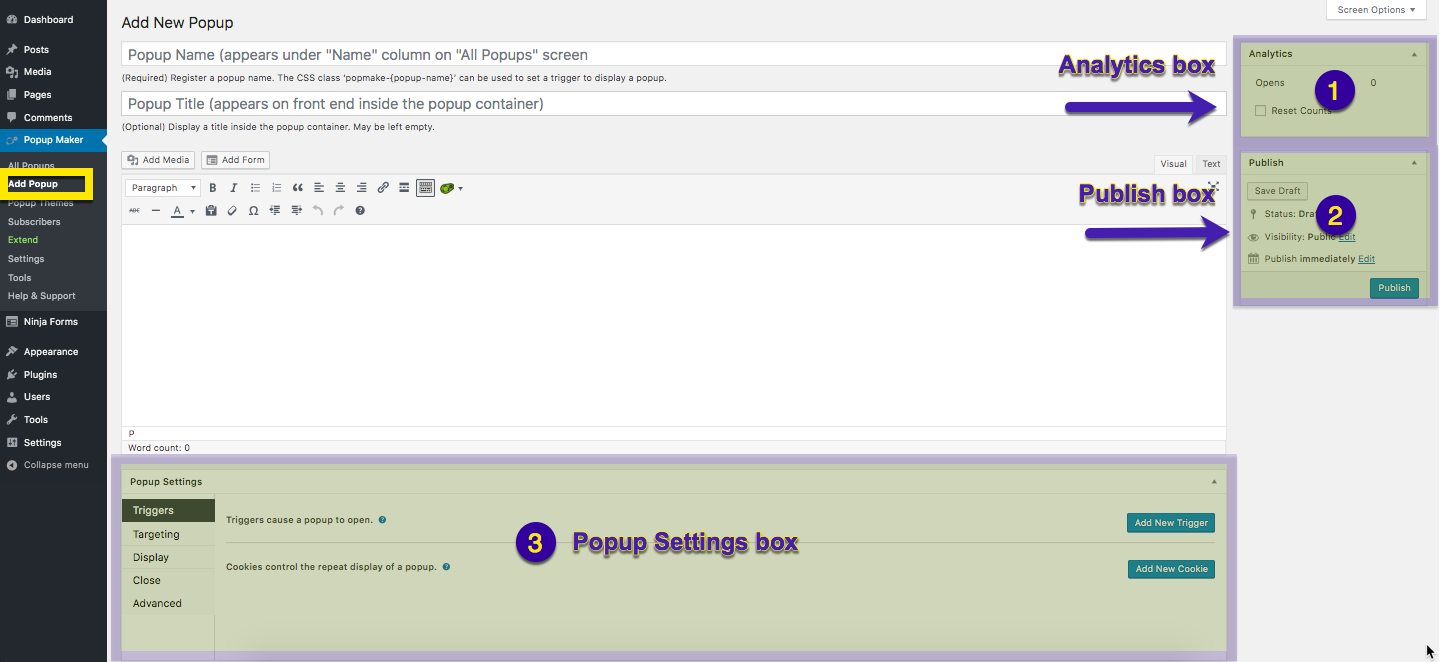
Popups are created in the popup editor. This article introduces users to the feature areas within the popup editor.
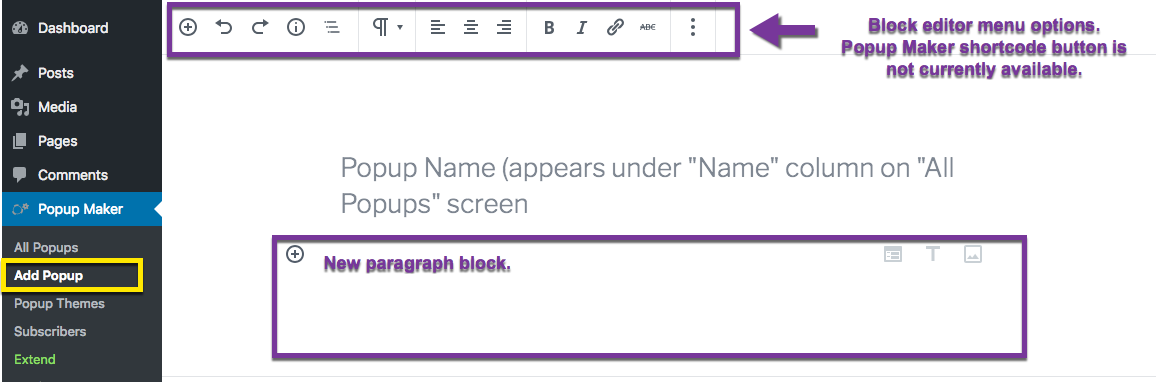
By default, the popup editor uses the WordPress classic editor. The block editor introduced in WordPress version 5.0 can be activated from the Popup Maker Settings menu.
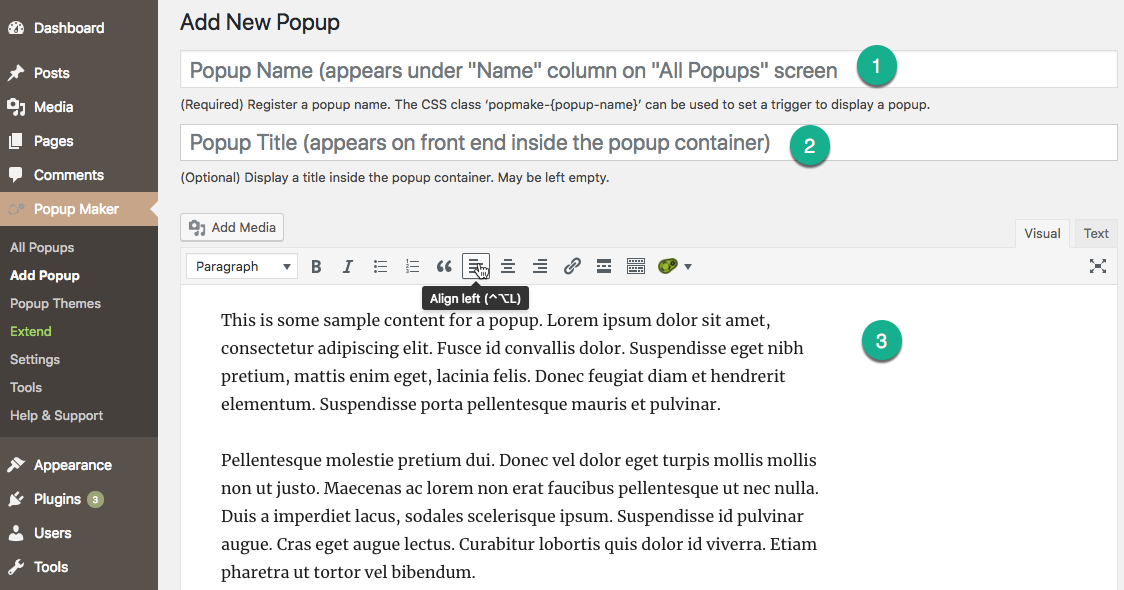
The popup content. Acceptable content includes text, links, shortcodes, and media (images, graphics, video, audio, document files). Code scripts (PHP and JavaScript) entered directly into the editor are disabled by WordPress.
Table 2. Summary of Available Boxes in the Popup Classic Editor
Box Item
Box Name
Required Box
Description
1
Analytics
No
View data on the number of popup ‘opens’ and user action, such as opening a link, or form submit (‘conversions’). The analytics data counter can also be reset back to zero.
Our Popup Analytics plugin extension to Popup Maker provides detailed analytics information about your popups, including number of times opened, average time open, conversions, average conversion time, conversion rate and more.
2
Publish
Yes
Displays the publication status of a popup; ‘Published’, ‘Pending Review’ or ‘Draft’. Select the ‘Publish’ button to save a new popup. Select the ‘Update’ button to save a popup revision.
3
Popup Settings
Yes (trigger only)
The primary option settings box for each popup. From the Triggers tab, a popup trigger must be selected from this box to display a popup. Users can accept all other initial settings in this box to publish a working popup.
Once a new popup is published, a Preview button becomes available in the classic editor. Click the button to preview a popup on the front end.
Popups set with a Time Delay / Auto Open trigger will display on every page and post of a site until the Targeting option in the editor Popup Settings box is changed. If you create a popup on a live server, publish a popup with a Click Open trigger to preview it.
Figure 1 (above). Popup Maker shortcode button and menu in the classic editor.
The classic editor menu includes a Popup Maker shortcode button. This feature is not currently available in the block editor menu shown below.
Figure 2 (above). The Popup Maker shortcode button is currently unavailable in the block editor.
If you rely on one or more Popup Maker shortcodes in the content editor, continue to use the classic editor. The Popup Maker shortcode button will be added to the block editor menu in a future version release.
The block editor displays fewer fields and relocates information about the popup to the editor sidebar. The sidebar contains information on the popup’s publication status ( published or draft ) and analytics. The Popup Settings box is positioned below the block editor.
See the following related article on how to create and publish a popup.