









When you hover over the Popup Maker Admin Bar, you’ll see the following menu items:
- Popups
- All Popups
- Create New Popup
- Tools
Let’s go over each one.
Popups #
Next to the Popups menu is a popup counter. The popup counter tells you how many popups Popup Maker sees on the page you’re on.
Hovering over Popups brings up a submenu that shows all the popups on your page. I.e., that list has all the popups that can display on the page you’re on.
Missing a popup? #
If there’s a popup missing, it means that the popup was * not* loaded on the page. You might’ve forgotten to publish the popup or there’s a targeting condition that’s stopping it from loading on the page.
If you’re having trouble getting your popup to load or display on a post or page, head over to our Troubleshooting Your First Popup guide.
Example list of popups #
In the screen capture below, Popup Maker sees the following 5 popups on the page.
- General Test Popup
- RC: Load a GF form with no CSS selector
- RC: Load a GF forum using a CSS selector
- Popup Maker Opt-in Form Success
- RC: Load a GF form using an iFrame
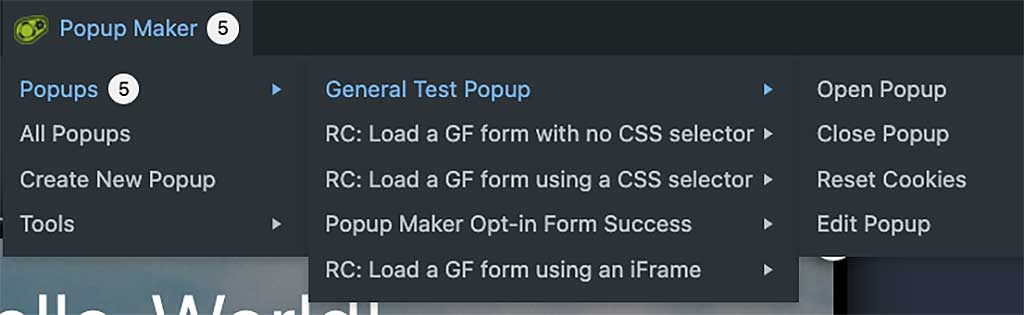
There are 4 actions you can do for each popup in the Popups submenu. Let’s cover those now.
Popup Actions #
For each popup listed in the Popups submenu, you can do the following:
- Open Popup: Opens the popup.
- Close Popup: Closes the popup.
- Reset Cookies: Deletes any browser cookies the popup created. This is great for retesting the popup. You’ll see a success message after the popup’s cookies are cleaned out.
- Edit Popup: Loads the popup editor page for the popup.
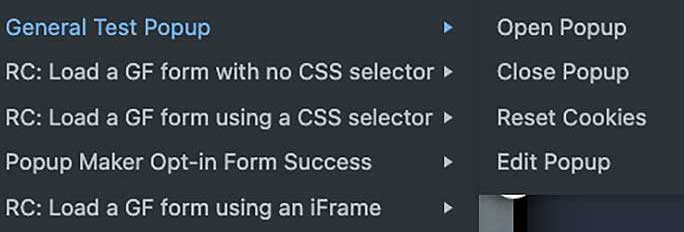
Above: The 4 things you can do to your popup from the admin bar.
All Popups #
Clicking on All Popups brings you to the main Popup Maker admin page.
Create New Popup #
This is a quick link for creating a new popup. Clicking on it brings up the popup editor page with a new (blank) popup.
Tools #
Hovering over the Tools submenu shows options to Flush Popup Cache and Get Selector.

- Flush Popup Cache: Recreates the popup cache files in the asset cache folder. Use this to update your cached popup settings with your latest popup changes.
- Get Selector: Prompts you to click something on the page. The CSS selector for what you click on displays in an alert window. This comes in handy if you need to add an extra CSS selector for your popup trigger.
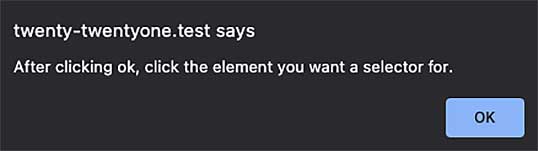
Above: The prompt for clicking on an item to get the selector.
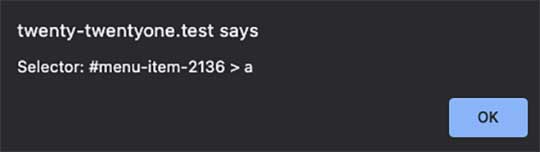
Above: The selector for what you clicked on.


