









If you’re new to Triggers and Cookies, check out our doc on Cookies and our doc on using Triggers and Cookies together.
If you don’t have time for that, use the screenshots below as a guide – based on what setup you’re using (Birthdate Type with No Lockout, for example). Setup your Age Verification popup exactly like the screenshots below and that will get you to the finish line without really having to understand the behind-the-scenes stuff.
We used a default Cookie Time of one month, but you may want that to be different depending on your website/personal preference.
Birthdate Type with Lockout Disabled #
The Birthdate Type required the user enter their age – month, day, year – manually, via keyboard:
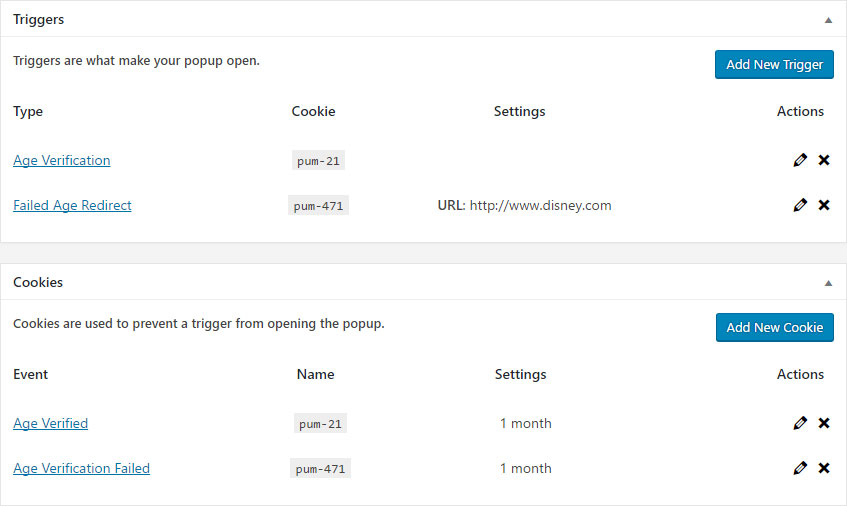
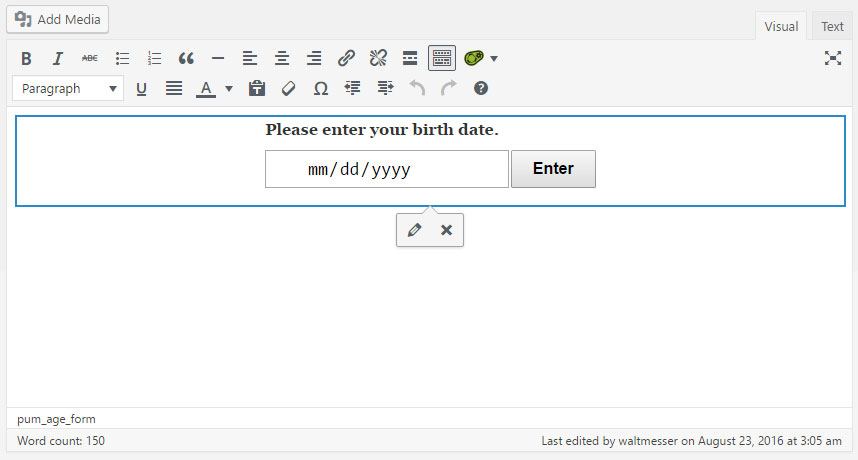 Leaving the Lockout Feature (found under the General Settings Tab of the Form) unchecked will give your users only one try to enter an age that meets the requirements to enter your website, or they will be forwarded to the Exit URL.
To make sure it works seamlessly, setup your Triggers and Cookies like this:
Birthdate Type with Lockout Enabled #
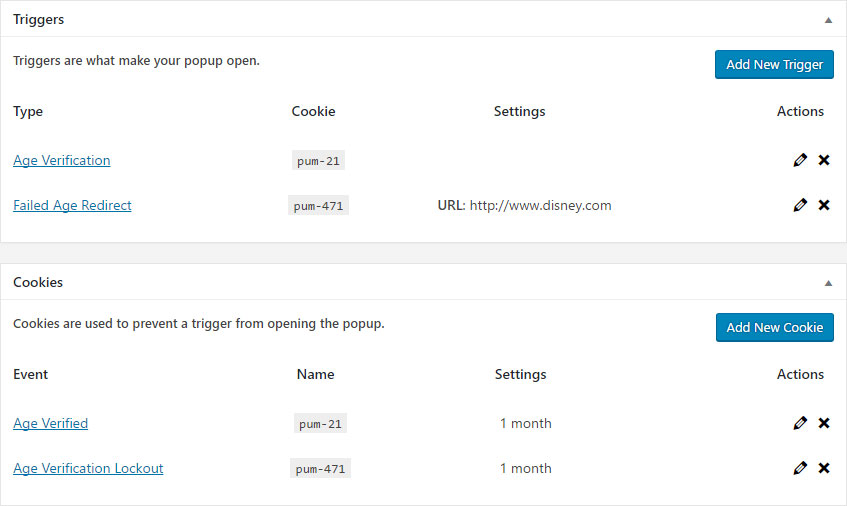
This Age Verification Form is just like the one above, except if gives your users as many tries as you see fit to verify their ages.
To make sure it works perfectly, setup your Triggers and Cookies like this:
Enter/Exit Type (Lockout Feature not available) #
The Enter/Exit Type is simply an enter button and an exit button.
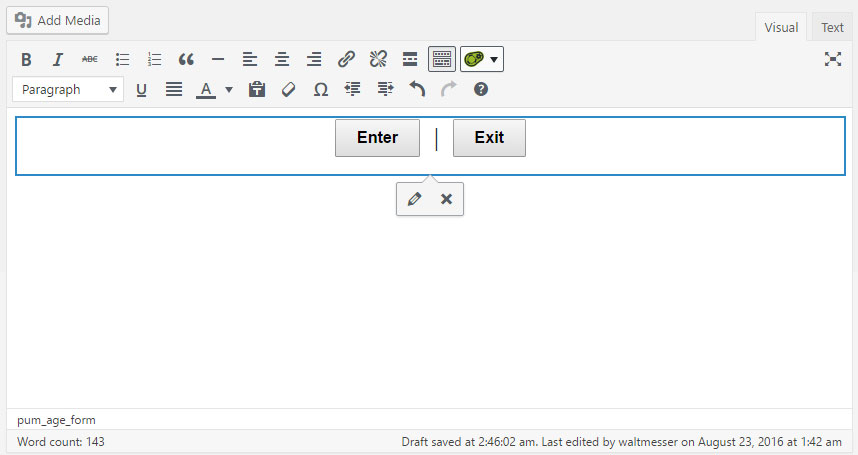
The Lockout feature does not apply in this case, which means the user only gets one chance. As such, we setup our Cookies and Triggers like this:
Wrap Up #
If you match any one of these three Use Cases, you will have a rock solid, secure, age verification system on your website!
If you want to learn more about all of the details of the features and settings throughout the extension, check out the related docs below.


