









Overview #
Popup Maker version 1.8.0 introduces “tabbed” theme options to the Popup Theme Editor. The new interface provides easier access to find and customize popup theme settings.
The Theme Preview box is now in clear view to the right of the Theme Settings box. Areas clicked inside the Theme Preview box will display their corresponding theme option settings for editing.
Each theme setting is documented by option tab and category (when it exists) within the Theme Settings box. See the related links at the end of this article to find the documentation for each theme setting category.
The Popup Themes Editor #
Select ‘Popup Themes’ in the Admin #
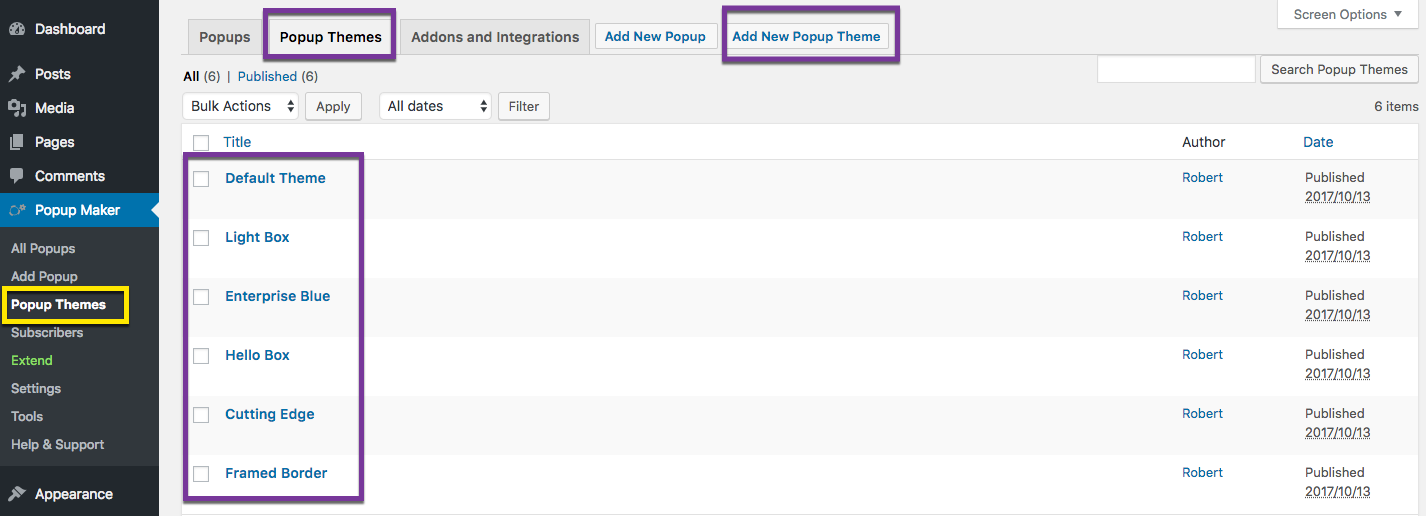
From the WordPress Admin, navigate to Popup Maker >> Popup Themes. Or select the Popup Themes option tab within the plugin Admin.
Edit a Pre-Installed or Add a New Popup Theme #
When you activate Popup Maker, it installs six pre-set popup themes. We show each theme preview below so you can see how it’s styled with its default settings.
1) Default Theme #
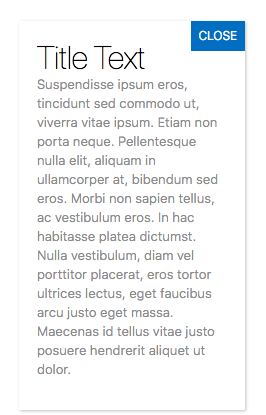
2) Light Box Theme #
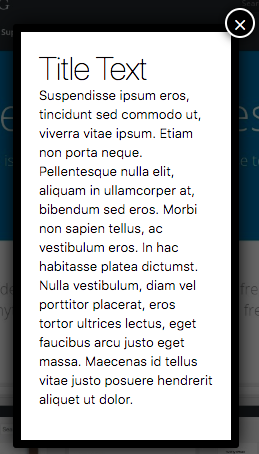
3) Enterprise Blue Theme #
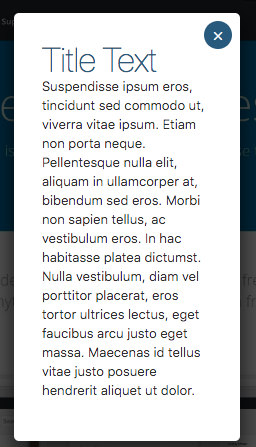
4) Hello Box Theme #
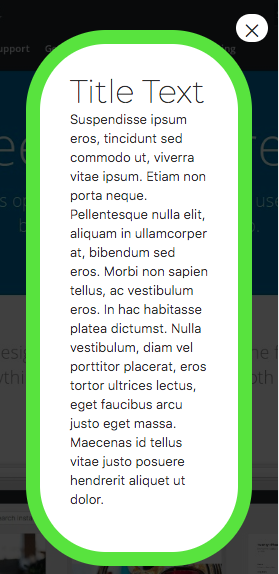
5) Cutting Edge Theme #
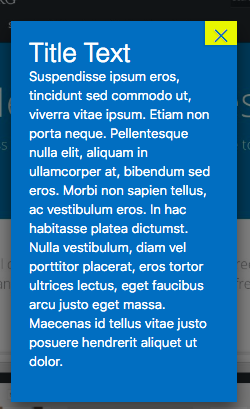
6) Framed Border Theme #
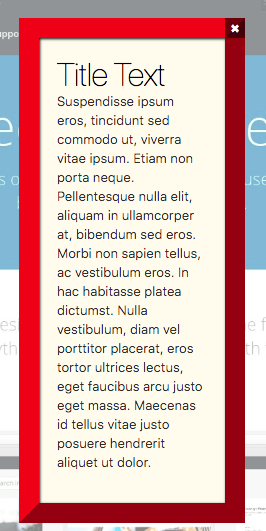
From the Popup Themes admin, choose an existing theme to edit, or click the ‘Add New Popup Theme’ button to edit a new theme. Either selection will open the Popup Theme Editor.
Assign a New Popup Theme Name #

When editing a new theme, assign the theme a name. Enter the name into the field marked Popup Theme Name. Select the Publish button to save the newly added theme.
Use ‘Theme Preview’ To Find Theme Settings Options #
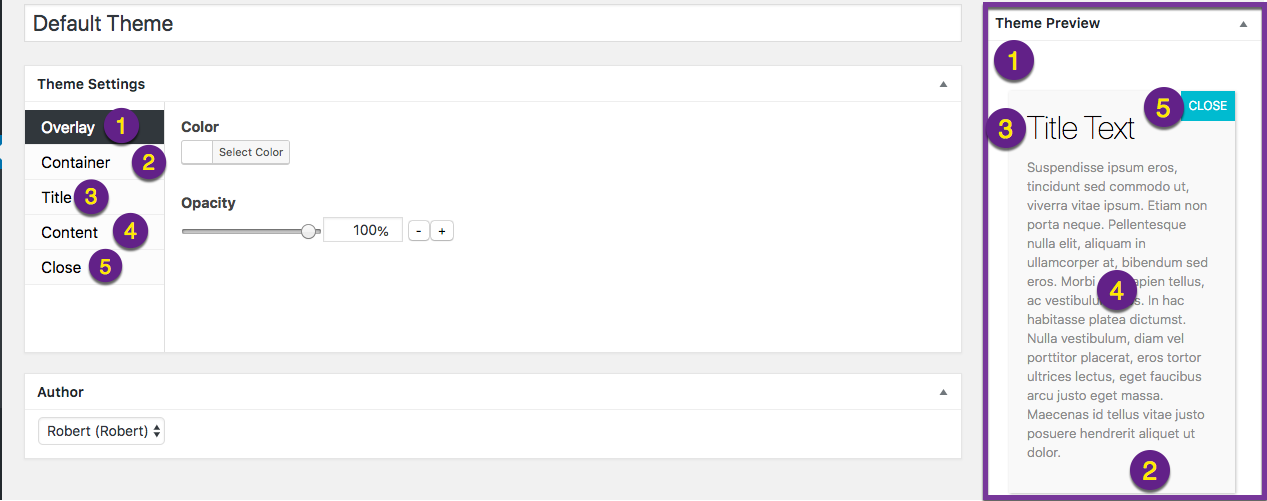
View of the Popup Theme Editor (above) with each numbered section of the Theme Preview box (right) mapped to an option tab in the Theme Settings box (left).
The Popup Theme Editor includes a Theme Preview box in the right hand column. Each change to the popup theme settings is reflected in this preview.
Pro Tip #1: By default, the ‘Theme Preview’ box is positioned above the ‘Publish’ box. Scroll down the page to view the ‘Publish’ box. Reposition the ‘Theme Preview’ and ‘Publish’ boxes with the cursor to suit your needs.
Pro Tip #2: Click on any section within the Theme Preview box, and the option settings for that section will open in the Theme Settings box. Each section of the Theme Preview box is linked to the option settings in the Popup Theme Editor.
Now that you’ve been introduced to the Popup Maker Theme Editor, customize each section of your popup to suit your needs. Reveal all of the settings for each section by expanding the following option setting boxes:
Once the theme edits are complete, select Publish to save the changes. If a new theme is added, and you intend to use it with a specific popup, assign it in the Popup Editor. See the following related article.
Related article: ‘Display – Appearance’ option settings
Add a Background Image to a Popup #
By default, each popup theme sets a background color for the overlay layer and popup container. The overlay layer is the screen area that surrounds each popup.
Background images can be added to either the overlay layer or popup with the Advanced Theme Builder plugin extension to Popup Maker.
Set Default Popup Theme For New Popups #

Set the default popup theme for each new popup on the Popup Maker Settings option page. From the WordPress Admin, go to Popup Maker >> Settings >> General, and select a saved popup theme from the drop-down menu.
When Popup Maker is first activated on a site, the default popup theme is set to Default Theme. Each of the popup themes preinstalled with Popup Maker will be listed as menu options. Any new popup theme added to the plugin will appear in the default popup theme menu. Select the Save button after updating the default theme option to save your changes.
Popup Themes Options — Related Articles #
Each of the following articles documents a popup theme setting option, it’s application, properties, and range of available settings. The articles are named according to their option tab and category (when it exists).
- Theme Settings — Container tab / Container category
- Theme Settings — Container tab / Background category
- Theme Settings — Container tab / Border category
- Theme Settings — Container tab / Drop Shadow category
- Theme Settings — Title tab / Font category
- Theme Settings — Title tab / Text Shadow category
- Theme Settings — Content tab
- Theme Settings — Close tab / General category
- Theme Settings — Close tab / Size category
- Theme Settings — Close tab / Background category
- Theme Settings — Close tab / Font category
- Theme Settings — Close tab / Border category
- Theme Settings — Close tab / Drop Shadow category
- Theme Settings — Close tab / Text category


