Exit Intent Plugin Extension #
This guide is for the premium Exit Intent plugin extension. You can buy it on our product page or try it for free on our demo site.
What’s in This Guide #
In this help guide, we will describe each Exit Intent trigger setting method (e.g., mouse leave, back button) that Popup Maker supports.
Here’s a visual of what those settings look like when you add a new Exit Intent trigger.
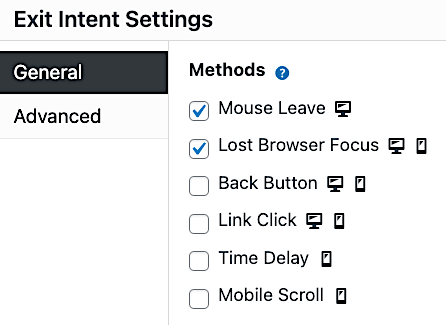
Note the Mouse Leave and Lost Browser Focus methods are on (checked) by default.
What are Exit Intent Methods? #
Exit Intent methods are the ways to signal your popup that someone is about to leave the page. In plain English, they are the ways you say to your popup, “Hey, someone is about to leave the page. So pop up right now!”
Where do I find the Exit Intent settings? #
You can get to the Exit Intent triggers settings in these 2 ways.
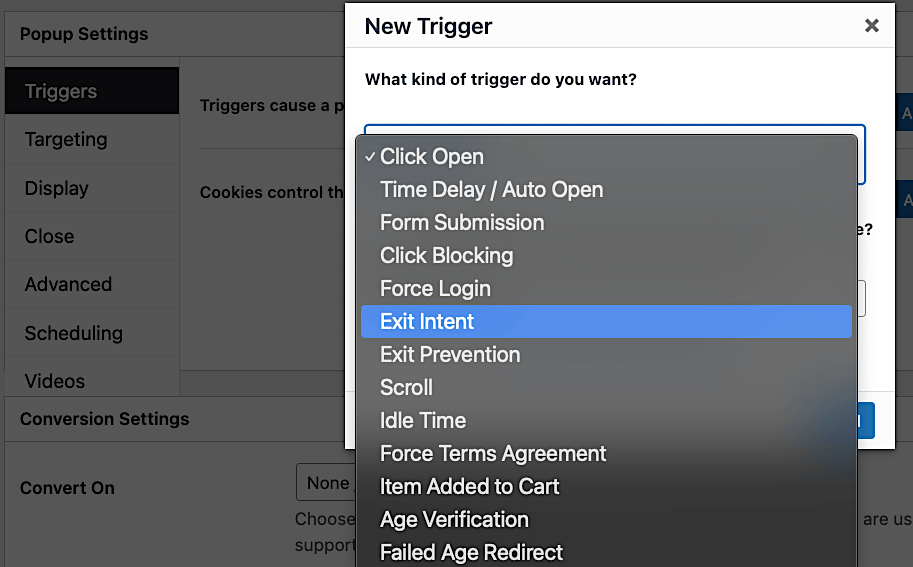
1. Adding a new trigger: Under Popup Settings > Triggers, click Add New Trigger, then select Exit Intent and click Add. The methods settings display after you click Add.
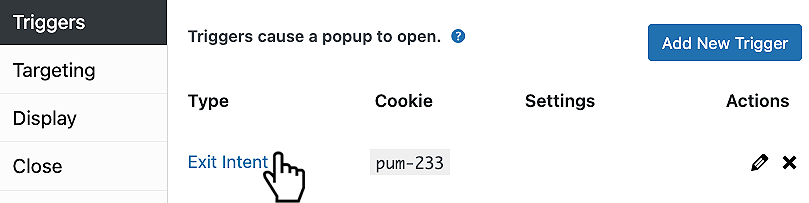
2. Editing an existing Exit Intent trigger: Under Popup Settings > Triggers, click Exit Intent or the pencil icon next to your trigger.
List of Exit Intent Methods and What They Do #
Pro tip! #
Make sure you use the Exit Intent trigger with a cookie to prevent annoying your visitors.
Legend #
- (m) Mobile compatible
- (d) Desktop compatible
Mouse Leave (d) #
This method detects when you move your pointer outside of the top edge of the browser window, generally towards the address bar, back button, or close button.
Mouse Leave Advanced Options #
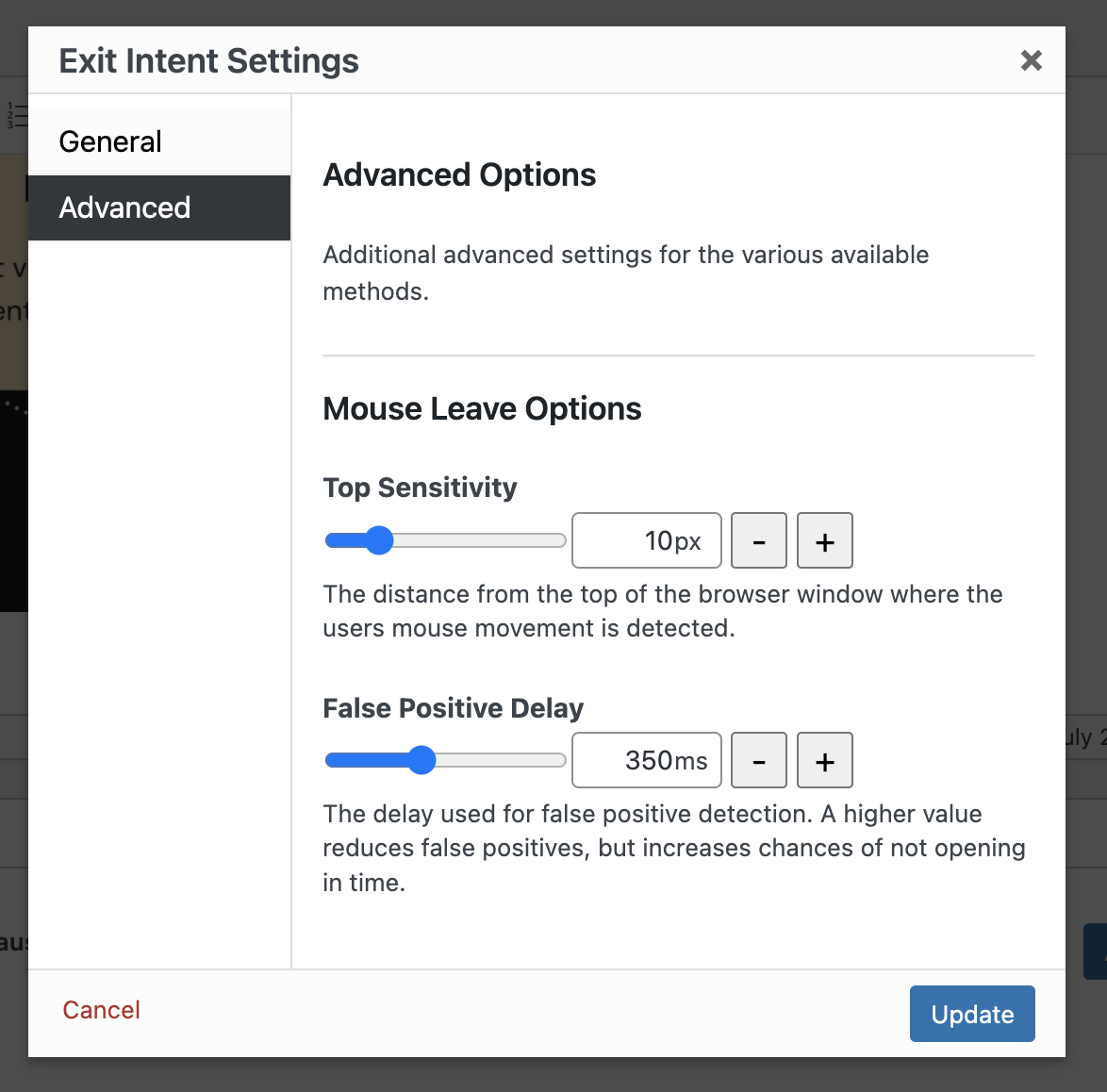
Top Sensitivity: Control how many pixels from the top you want to trigger the popup.
False Positive Delay: Increase or decrease how much time (milliseconds) to delay the popup to avoid false positives (moving the cursor to the top, then quickly back down into the post or page). For example, 500 milliseconds is 0.5 seconds (half a second).
Lost Browser Focus (d)(m) #
This detects when you click outside of the browser window, change tabs, or switch to another application.
Back Button (d)(m) #
This captures an attempt to click the back button (the first time) and triggers a popup. A second click and you’ll continue to the previous page.
Back Button Advanced Options #
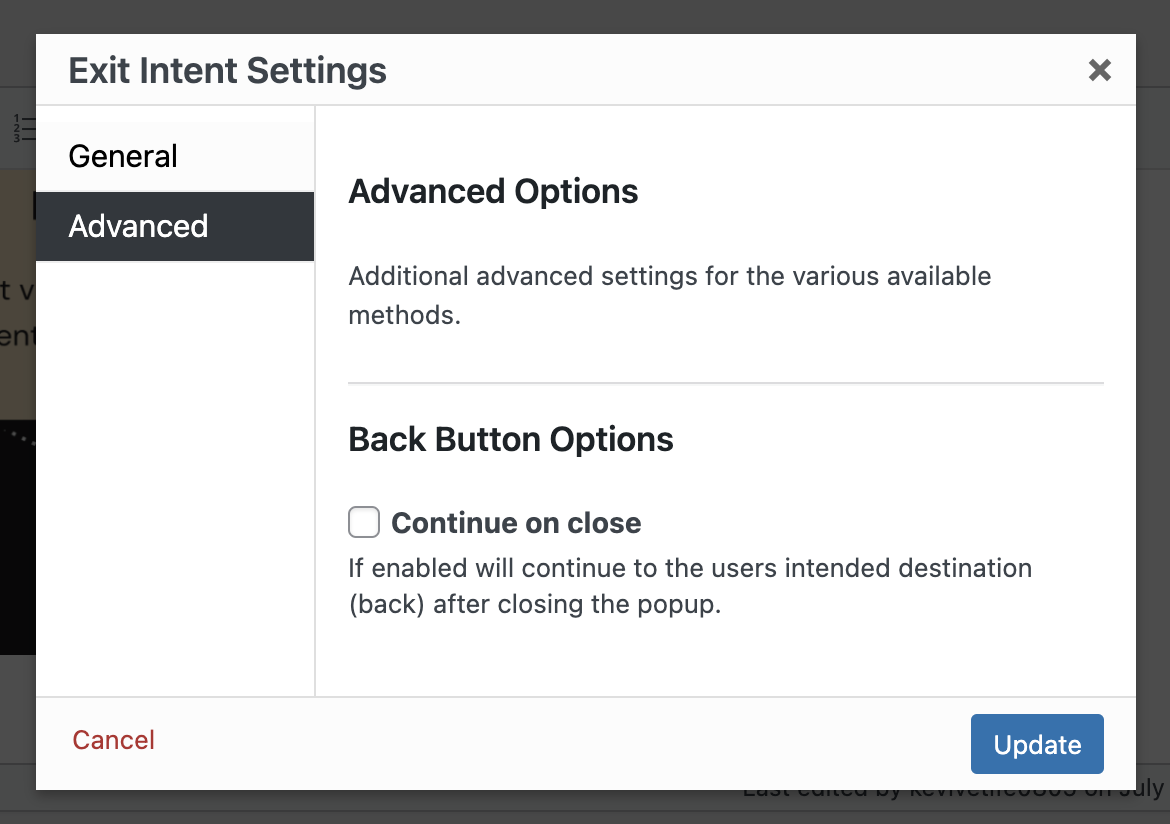
Continue on close: Optionally continue back when you close the popup.
Link Click (d)(m) #
This works on the principles used in optimization tools like Google Quicklink or instant.page technology. Before you can click on a link, you hover over it. Popup Maker detects that someone is about to click a link, so you can trigger a popup just before they do.
Security-minded people will hover long enough to see where the URL goes. Use this tip to help you decide how long to wait before showing your popup when someone hovers over a link.
Link Click Advanced Options #
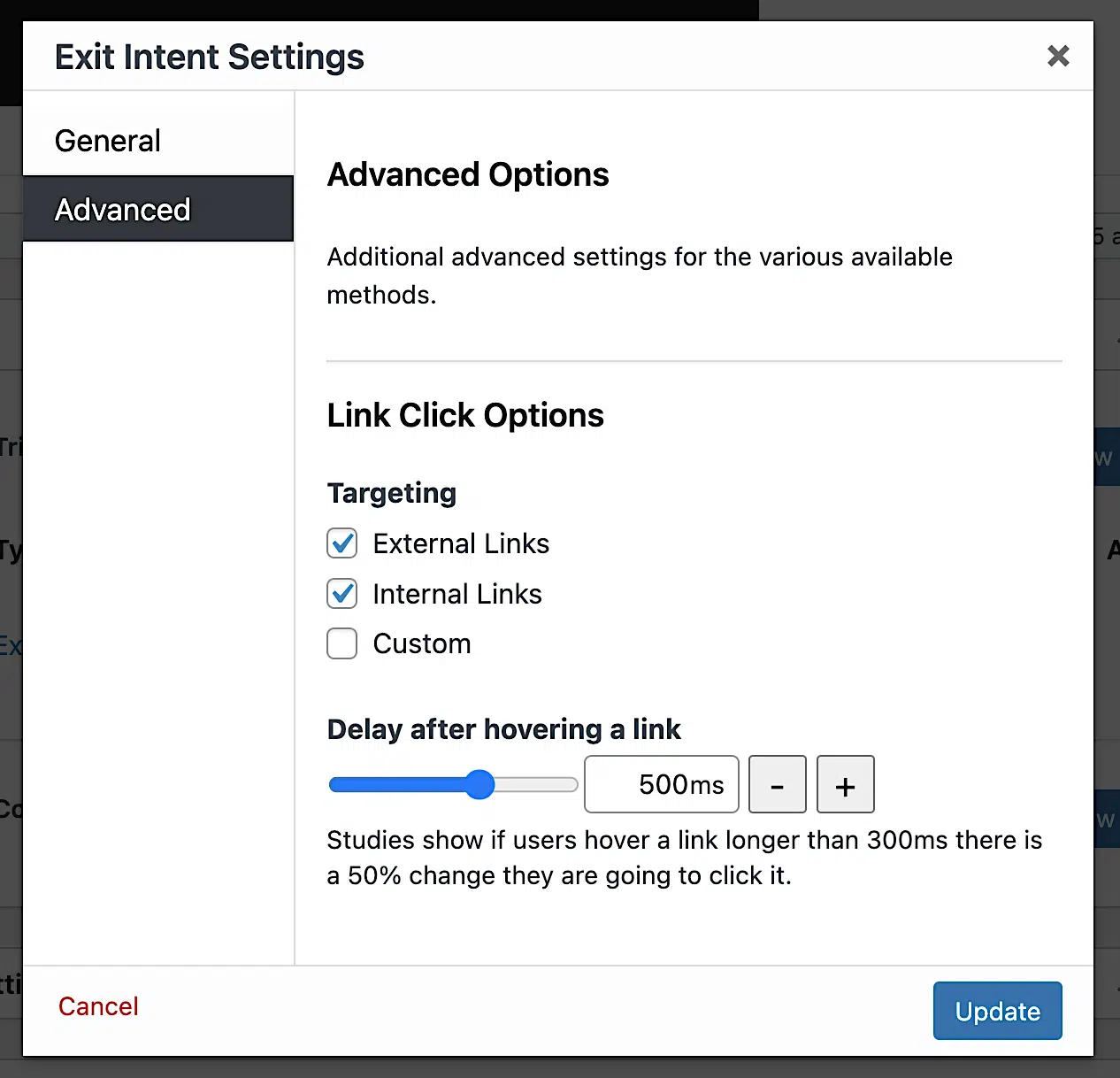
Targeting: You must choose to target Internal or External links (Exit Intent Settings > Advanced). You can also enter CSS selectors to target only the links you want (Custom targeting). A combination of all three targeting options works too.
Delay after hovering a link: Refine how many milliseconds someone hovers over a link before triggering the popup. For example, 500 milliseconds is 0.5 seconds (half a second).
Using Multiple CSS Selectors for Link Targeting #
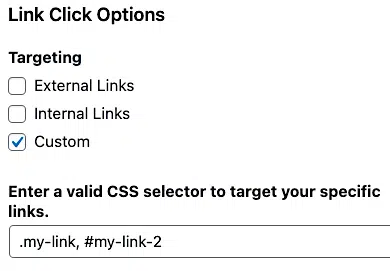
Below is an example of using multiple CSS selectors separated by a comma.
Time Delay (m) #
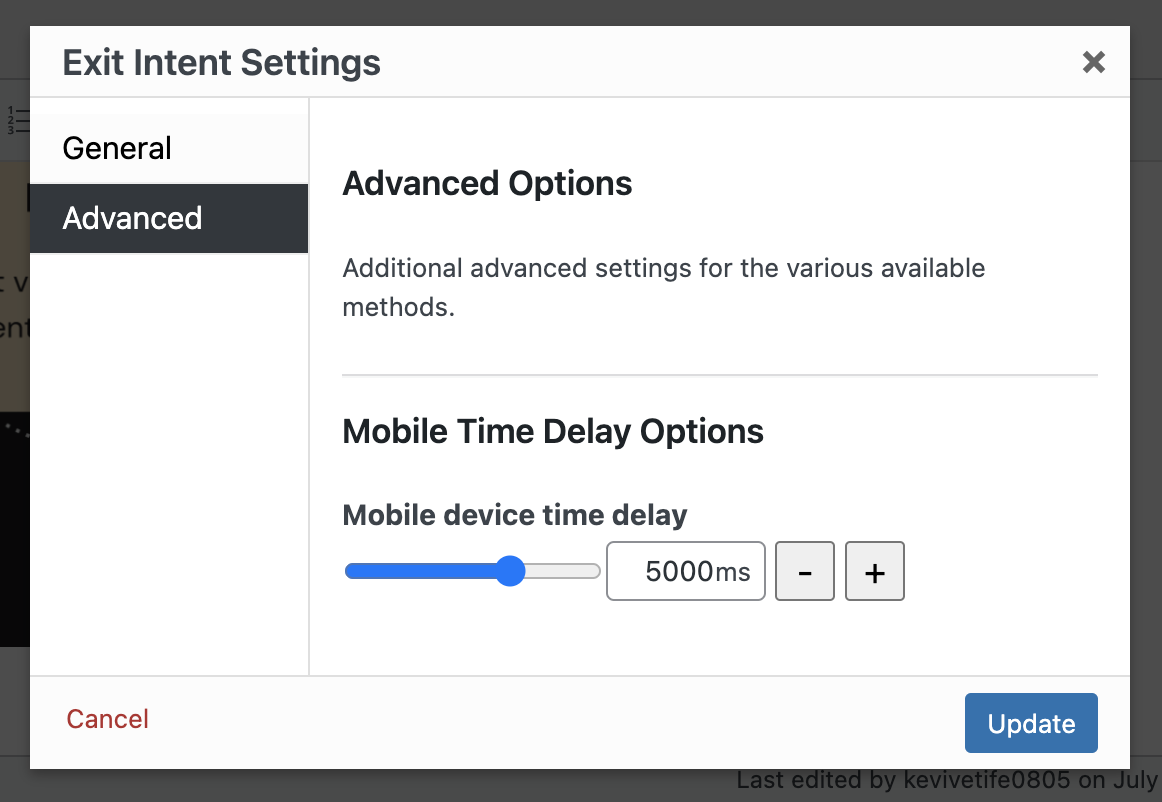
This is a simple time delay fallback specifically for mobile devices. When the other methods don’t fit your mobile visitor’s flow, this is a classic, time-tested solution.
Time Delay Advanced Options #
Mobile device time delay: Set how many milliseconds before triggering the popup on mobile. For example, 5,000 milliseconds is 5 seconds.
Mobile Scroll (m) #
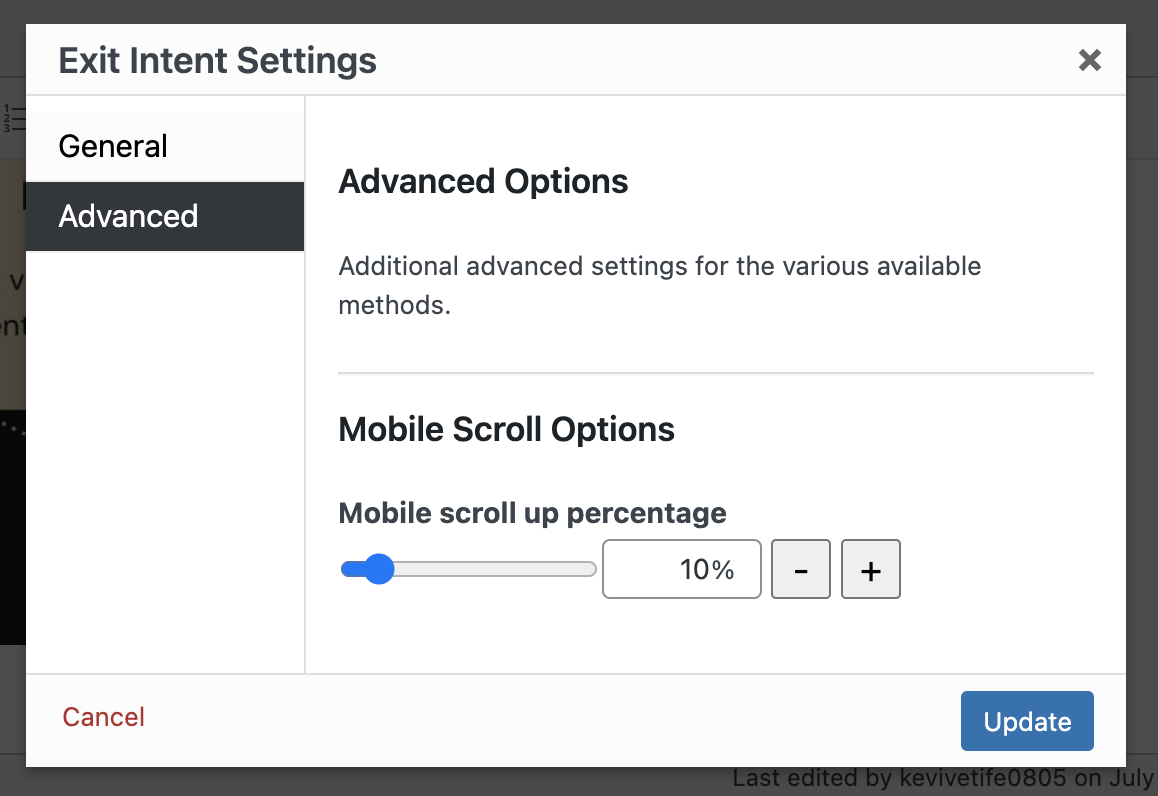
This trigger detects when mobile visitors quickly scroll up >10% of the page, after first scrolling down. This typically means they are about to leave the post or page.
Mobile Scroll Advanced Options #
Mobile scroll up percentage: Change the percentage of the page someone scrolls up to trigger the popup. The smaller the percentage, the sooner the popup displays when scrolling up on mobile.