









Popups can serve as ‘tool tips’ on any front-end content inside a web browser. Tool tips provide a way to deliver supplemental content to page visitors. This article explains how to configure Popup Maker to create such a popup.
Create a Popup and Select a ‘Click Open’ Trigger #
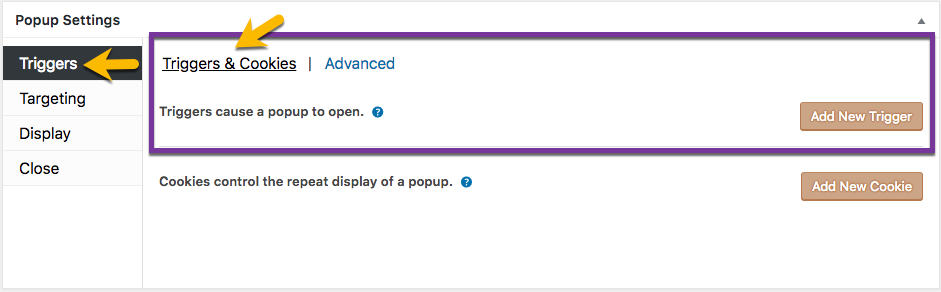
- Open the Popup Editor and scroll down to the Popup Settings box.
- Select the ‘Triggers’ option tab and ‘Triggers & Cookies’ option category.
- Select the ‘Add a New Trigger’ button and add a new ‘Click Open’ trigger.
Related article: ‘Triggers’ option settings
Tool Tip Popup Configuration in the ‘Popup Settings’ Box #
The following Popup Settings box settings are recommended to configure a tool tip popup.
1) ‘Triggers’ option -> ‘Triggers & Cookies’ category; do not add or link a cookie to the ‘Click Open’ trigger. The popup should be able to redisplay whenever a visitor selects the trigger in the browser.
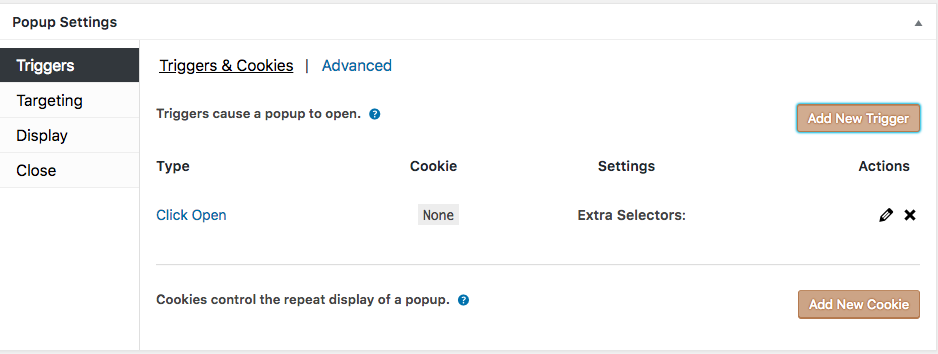
Display Option Settings #
See the following related article for guidance on the Display option settings in the Popup Settings box.
Related article: ‘Display’ option settings
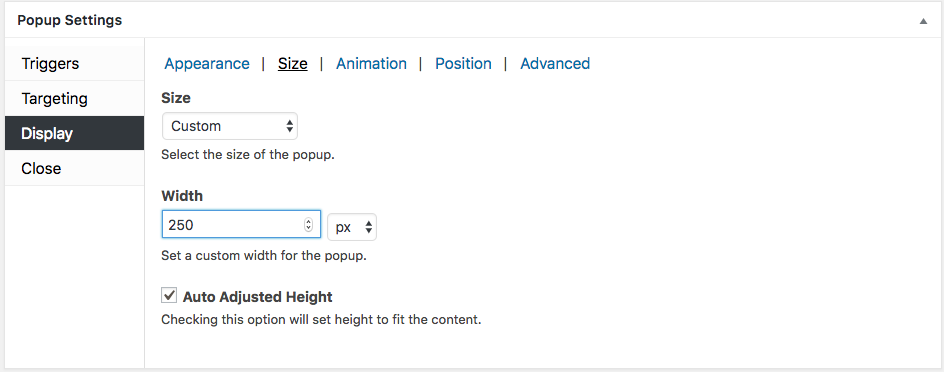
1) ‘Display’ option -> ‘Size’ category;
- Size: ‘Custom’;
- Width: 250 pixels (px); // Recommended starting value. Vary as needed.
- Auto Adjust Height (checkbox): checked.
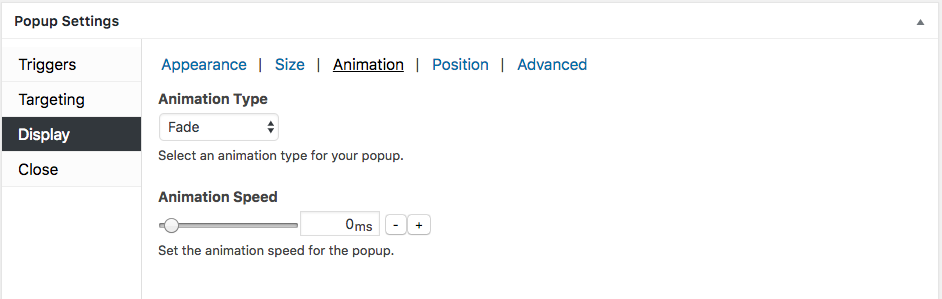
2) ‘Display’ option -> ‘Animation’ category;
- Animation Type: Fade (plugin default);
- Animation Speed: 0 ms (milliseconds) (plugin default: 350 ms).
3) ‘Display’ option -> ‘Position’ category;
- Position from Trigger (checkbox): checked (‘on’ / enabled )
- Location: Select from among the 9 popup anchor positions. When the ‘Position from Trigger’ checkbox is selected, the popup anchors relative to the position of the trigger inside the browser window. Position range sliders will appear beneath the ‘Location’ option to provide pixel level adjustment.
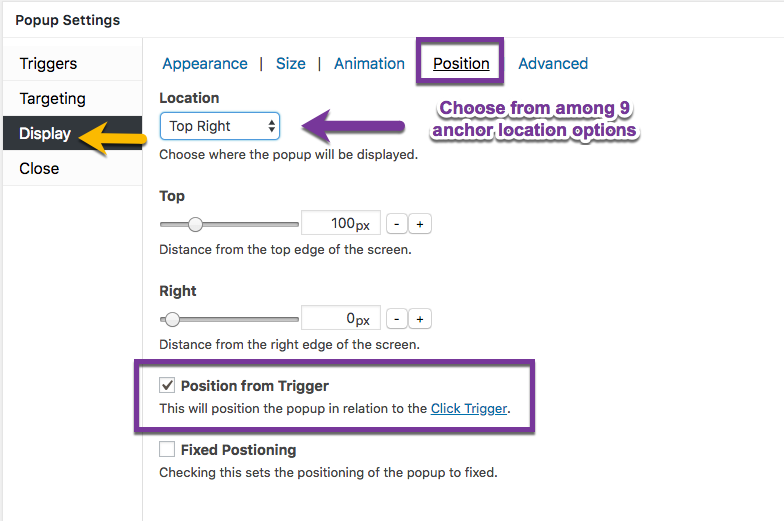
4) ‘Display’ option -> ‘Advanced’ category;
- Disable Overlay (checkbox): checked ( ‘on’ / enabled )


