









- As previously described in the article ‘Cookies’ options settings, Popup Maker’s browser cookies must be linked to a popup trigger in order to work.
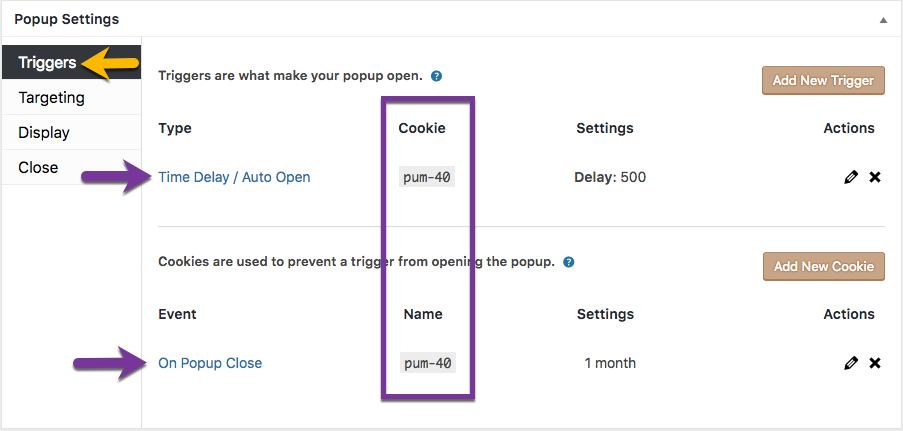
A popup cookie is linked to a trigger when:
- the cookie exists by name, and
- the ‘cookie’ column in the trigger contains the cookie ID ( “pum-{integer}” ).
Popup Maker Cookie Option Settings #
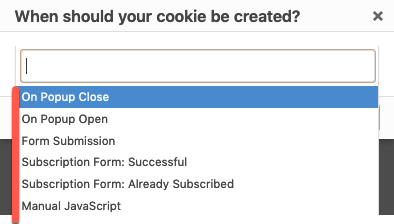
The base (free) version of the Popup Maker plugin includes 6 (six) cookie option settings to choose among:
- On Popup Close
- On Popup Open
- Form Submission
- Subscription Form: Successful
- Subscription Form: Already Subscribed
- Manual JavaScript
Summary of Each Cookie Option #
1. On Popup Close #
A popup cookie is set in the browser when the popup is closed via the popup’s ‘close’ button. This cookie option is the plugin default setting, and is suitable for most use cases.
2. On Popup Open #
A popup cookie is set in the browser when the popup opens. No matter how much or little of the popup the visitor sees the first time it’s shown, the cookie will now control the redisplay of the popup for the length of the ‘Cookie Time’ on the ‘Cookie Settings — General’ option tab.
Uses #
- This could be an interesting option if you only want this popup to fire off one time, perhaps an exclusive type offer.
3. Form Submission #
A form submission cookie is set in the browser when a form placed inside a popup is submitted. The cookie works in combination with the Form Submission trigger.
Acceptable forms include the Popup Maker subscription form and WordPress form plugins that integrate with Popup Maker. See the related article link below for a current list of form plugins supported by Popup Maker.
Related article: Popup Maker Integration with WordPress Form Builder Plugins
4. Subscription Form: Successful #
5. Subscription Form: Already Subscribed #
The ‘Subscription Form: Already Subscribed’ cookie option can only be used at present with the MailChimp Integration plugin extension to Popup Maker. The cookie option is intended for future use with the ‘Subscription Form’ shortcode and a WordPress-compatible form plugin or application registered with Popup Maker via our public API.
6. Manual JavaScript #
Cookies can be triggered by events other than:
- the close or open of a popup, or
- an AJAX-enabled form submission (i.e, the Popup Maker subscription form and integration-supported forms).
Uses #
- Set a cookie on ‘form submit success’ when using a WordPress form plugin for which we do not maintain an integration, or that is non-AJAX enabled.
- Create a custom fix when using form-building plugins or when conflicting JavaScript is present.
Manual JavaScript Example #
Let’s say you have an Auto Open Popup that triggers as soon as users visit your site – no matter what page the user hits your site on, you want the popup to open – thus, it’s a sitewide popup. Inside the popup is two images: clicking either one of the images puts you down Path A or Path B.
Once the user selects their path, you don’t want them to continuously be spammed by your popup, so you have to set the cookie on the click of the image element – this method works with any HTML element (text, image, etc.).
Related article: Create Cookie On the Click of an Element Within Your Popup.
Here are more guides for manually creating browser cookies to control how often to show your popups.
| Item | Documentation Article |
| 1 | A Beginner’s Guide To Manually Creating Cookies |
| 2 | Manually Set a Cookie On Form Submission |
Plugin-Specific Form Submit Success Cookies #
Note: In Popup Maker version 1.9, plugin-specific form submit success cookies remain valid. They will be deprecated in a future plugin version and eventually removed. The cookie methods will continue to work through the Popup Maker version 1.x series.
Recommended good practice is to use the new Form Submission trigger and cookie together when using a form or form plugin supported by Popup Maker inside a popup.
Popup Maker adds a ‘form submit success’ cookie option for any of the following WordPress form plugins when active:
- Ninja Forms
- Gravity Forms
- Contact Form 7
The following cookie options are added as menu options in the box labeled ‘When should your cookie be created?’ when each corresponding form plugin is active:
- Ninja Form Success
- GravityForms Success
- Contact Form 7 Success
Extension Specific Cookie Creation Events #
For extension specific cookie creation events, refer to the corresponding extension documents:


