Popup Maker has its own debug mode to help you troubleshoot problems with your popups. This guide shows you 2 ways to turn on debug mode and goes over the debug info you’ll get.
This guide assumes you have some experience using a browser’s DevTools console.
You can switch on debug mode in the following 2 ways:
- Clicking the checkbox for the Enable Debug Mode setting under Popup Maker > Settings > Misc.
- Adding a debug query string to the end of a page’s URL.
Using the Enable Debug Mode Setting #
Follow these steps to turn on the debug mode via the Popup Maker plugin settings.
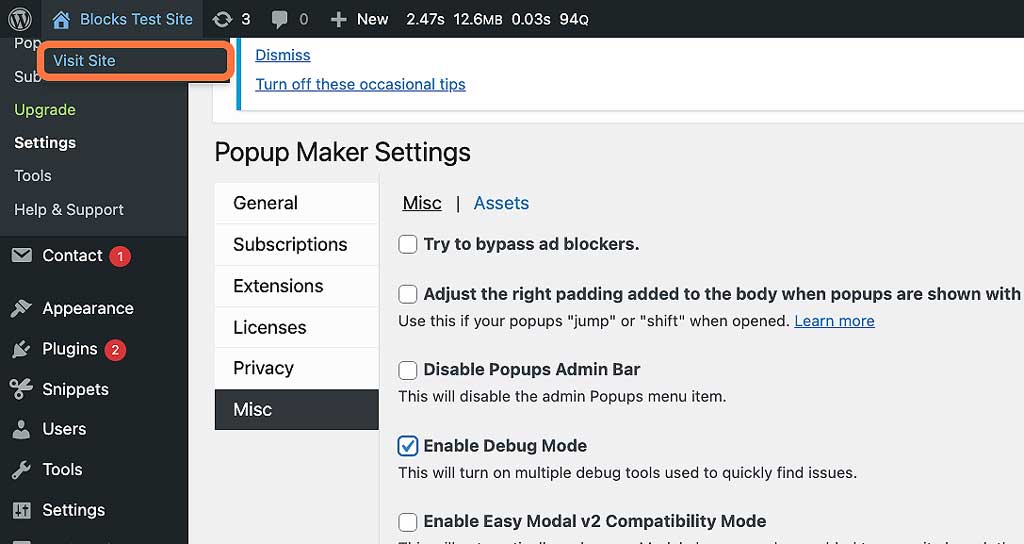
1. From your WP Admin area, go to Popup Maker > Settings.

2. Click Misc.
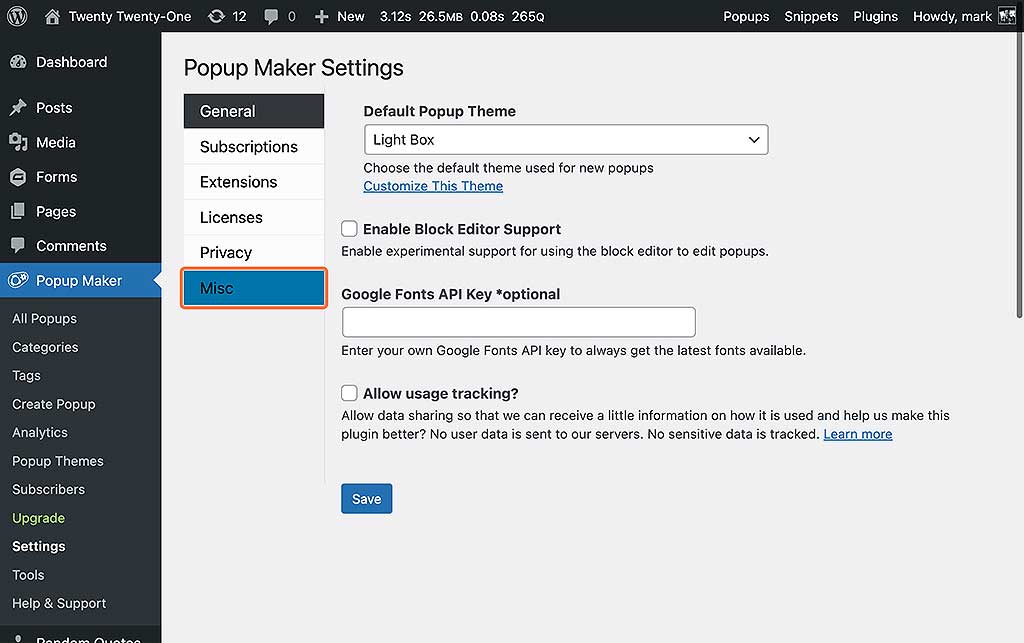
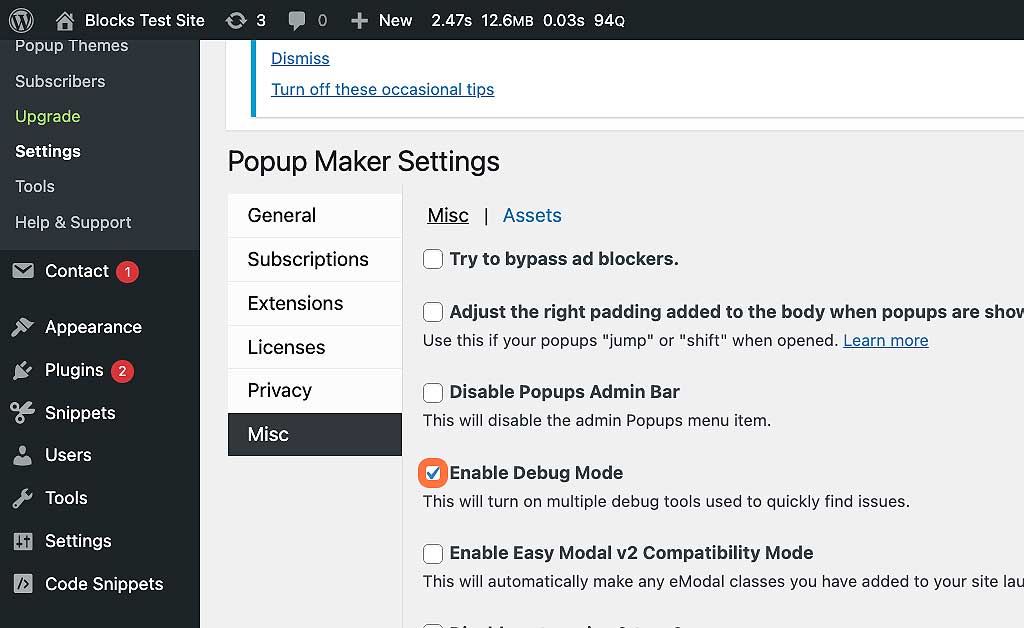
3. Click Enable Debug Mode. Make sure the checkbox is checked.
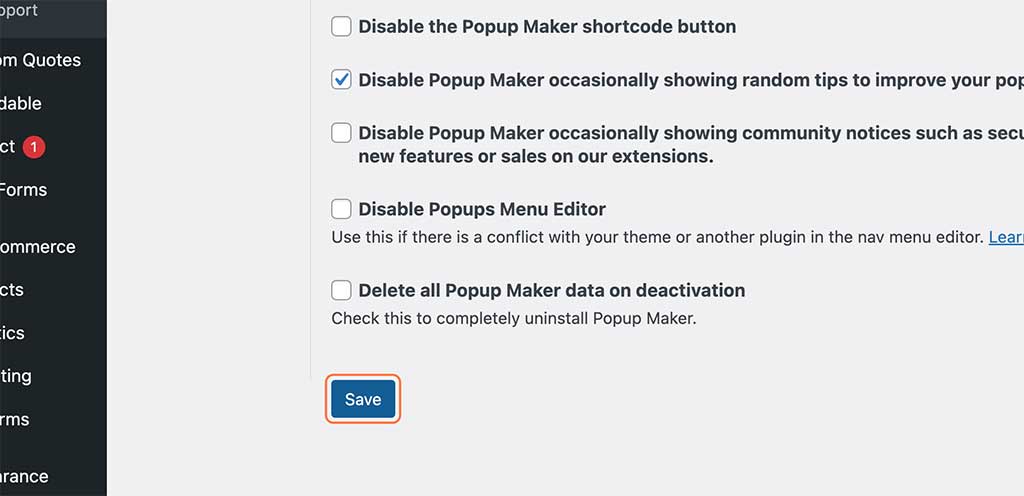
4. Click Save.
5. Hover over your website’s name in the top toolbar and click Visit Site.
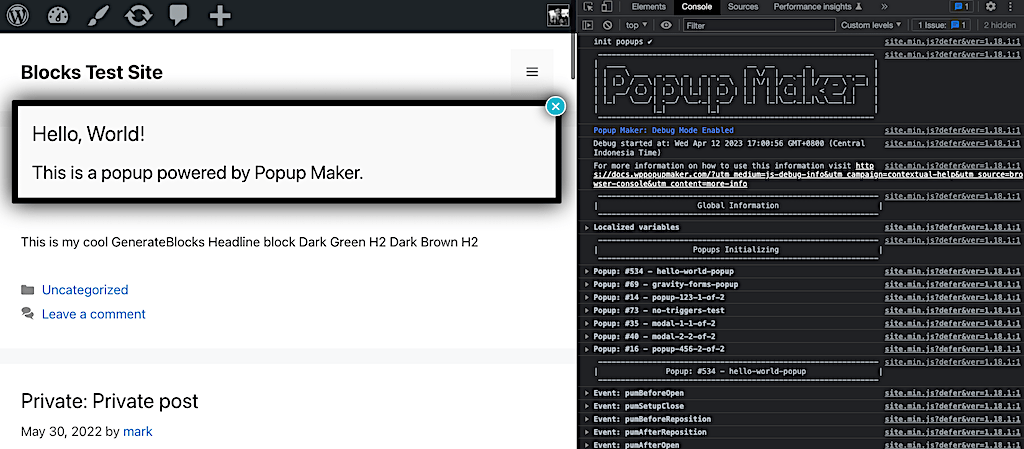
6. After your homepage loads, open your browser’s DevTools console. In the console, while debug mode is on, you’ll see the Popup Maker banner. If the page has popups, you’ll see them listed under the Popups Initializing banner heading by their popup ID and slug (the hyphenated version of your popup’s name, e.g., my-cool-popup).
Missing a popup? #
If there’s a popup missing from the list, it means that the popup was *not* loaded on the page. You might’ve forgotten to publish the popup or there’s a targeting condition that’s stopping it from loading on the page.
If you’re having trouble getting your popup to load or display on a post or page, head over to our Troubleshooting Your First Popup guide.
Jump down to learn more about the info you get in the console while in debug mode.
Using the Debug Query Parameter #
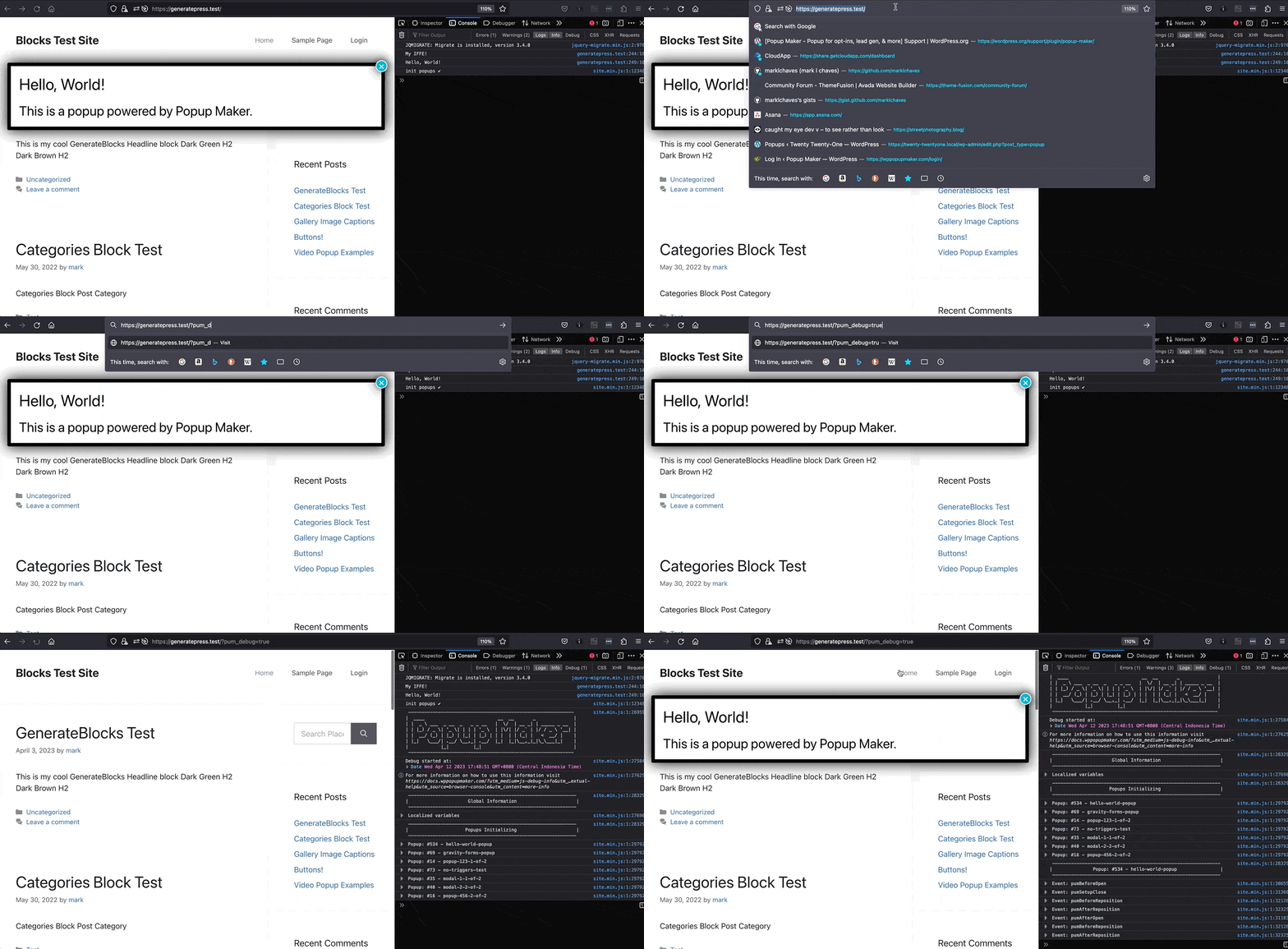
You can also turn on the debug mode on a page using the pum_debug query parameter. Add ?pum_debug=true to the end of the page’s URL in the address bar and hit return.
Here’s an example of a URL with the debug query parameter on the end. Replace the mywaycool.site/blog with your URL.
https://mywaycool.site/blog/?pum_debug=true
Here’s a clip showing how the query parameter works.
Debug Mode Console Details #
Popup Settings #
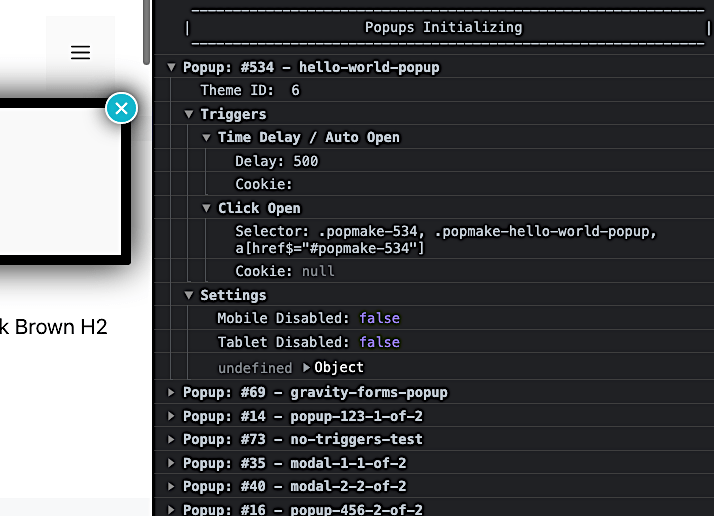
When you expand a popup entry under the Popups Initializing heading, you’ll see the triggers and device settings you defined for the popup. Expanding a trigger shows you the settings you have for the trigger.
For example, in the screen capture below, popup #534 (hello-world-popup) has an Auto Open and Click Open trigger. The Auto Open trigger has no cookies and will launch automatically after 0.5 seconds (i.e. 500 milliseconds). The Click Open trigger has no cookie, but it has 3 CSS selectors. This popup can display on all devices.
Popup Events #
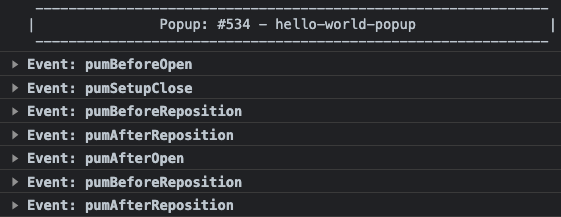
When a popup launches, a banner heading for it shows up in the console. Under the heading is a list of Popup Maker JavaScript API events the popup fired as it launched. The event at the top of the list is the first event that fired. The event at the bottom is the last event.