- Exit Intent Plugin Extension
- What's in This Guide
- Example Exit Intent Use Cases
- How To Create Your First Exit Intent Popup
- 1. Click Create Popup under the Popup Maker menu
- 2. Click Add New Trigger
- 3. Select Exit Intent from What kind of trigger do you want?
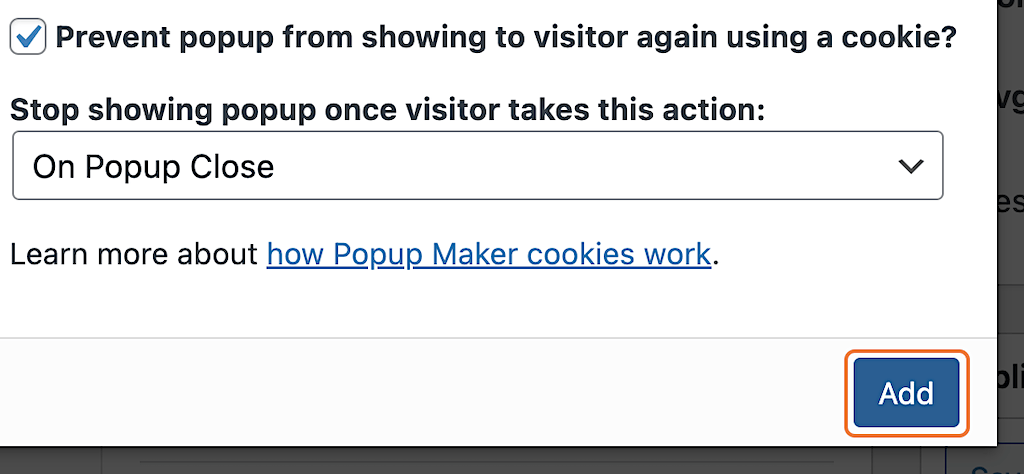
- 4. Keep the default cookie settings and click Add
- 5. Keep the default Method settings and Cookie Name and click Add
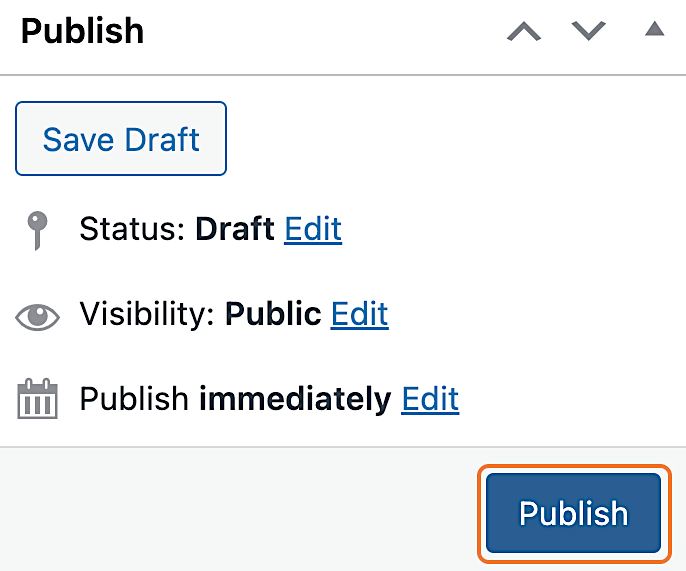
- 6. Click Publish to save your popup and make it go live
- Test Your Exit Intent Popup
Exit Intent Plugin Extension #
This guide is for the premium Exit Intent plugin extension. You can buy it on our product page or try it for free on our demo site.
Need to learn how to install your extension? #
Read our How Do I Install My Extensions? guide.
What’s in This Guide #
In this introduction to the Exit Intent extension, we’ll cover 2 main points.
- Example use cases for exit intent popups.
- Steps to create and test a basic exit intent popup.
In the tutorial section, you’ll create an exit intent popup that:
- Pops up when Popup Maker detects your cursor leaving the browser window (Mouse Leave) or when you switch to another app (Lost Browser Focus).
- Sets a cookie when you close the popup so it doesn’t display for you again for 1 month (default duration).
Example Exit Intent Use Cases #
Popup Maker’s Exit Intent extension is excellent for the following use cases:
- Showing abandoned cart popups.
- Nudging visitors with a signup form to opt into your email list for updates and deals.
- Offer a departing visitor an incentive or call to action (e.g., free download, free webinar, discount).
Important Stats #
Did you know that, on average, almost 70% of people abandon their shopping carts?
But hey, there’s hope! Optinmonk helped a business cut its abandonment rate by 17%. That’s why we think exit intent popups are worth a look!
The Exit Intent Trigger in Action #
Check out this short video for a sneak peek.
How To Create Your First Exit Intent Popup #
1. Click Create Popup under the Popup Maker menu #
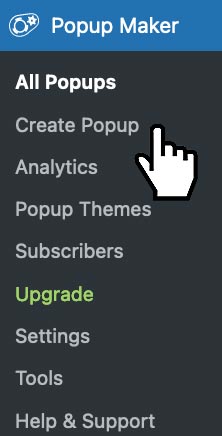
Give your popup a title (required), then scroll down to the Popup Settings.
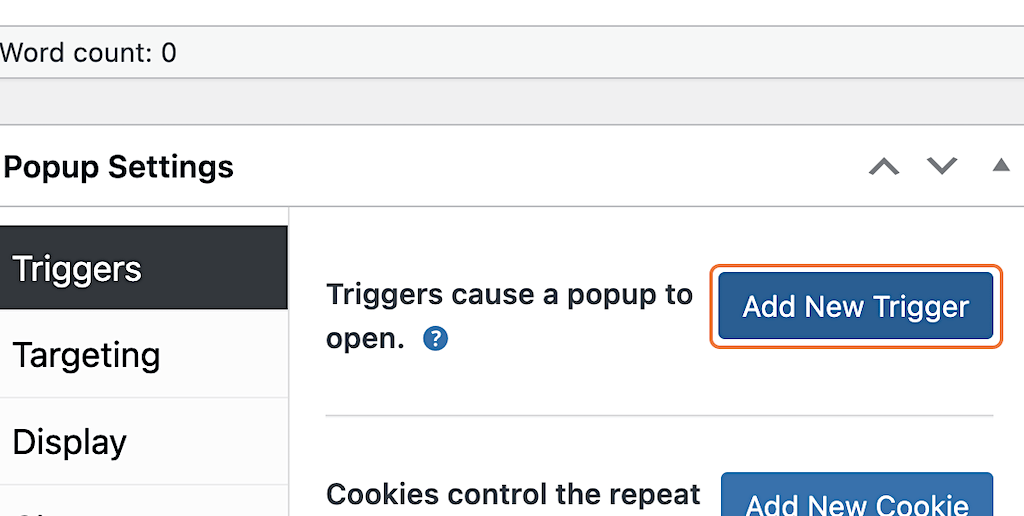
2. Click Add New Trigger #
3. Select Exit Intent from What kind of trigger do you want? #
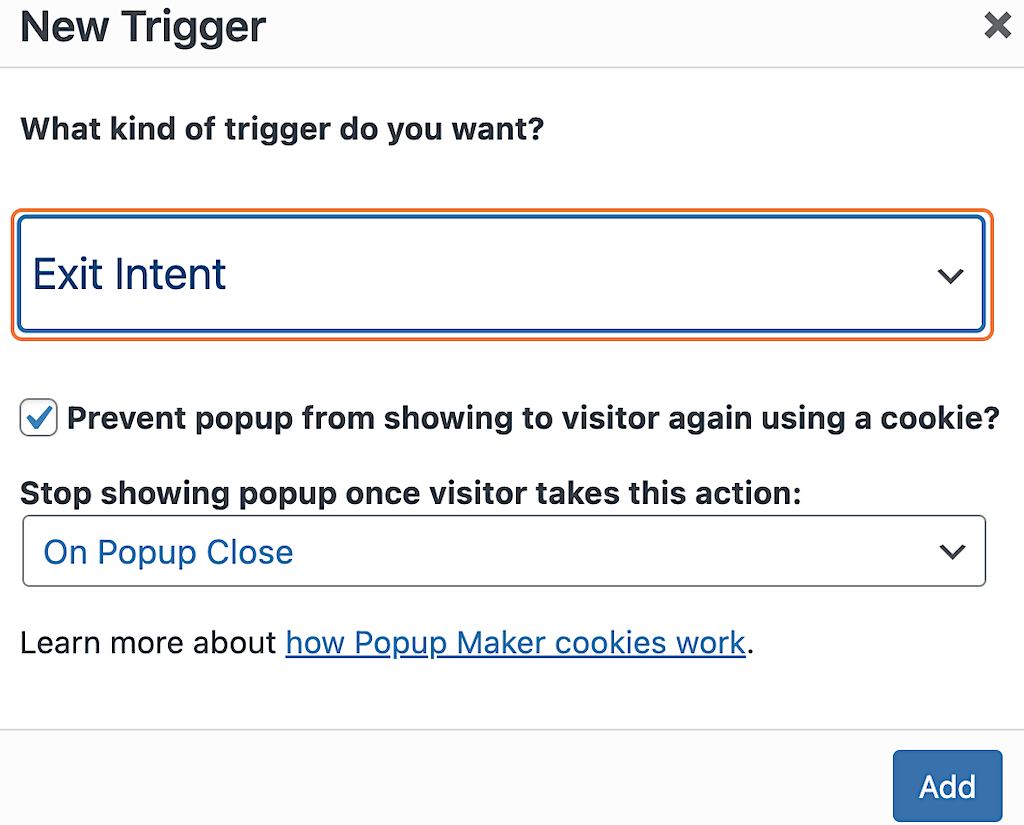
4. Keep the default cookie settings and click Add #
5. Keep the default Method settings and Cookie Name and click Add #
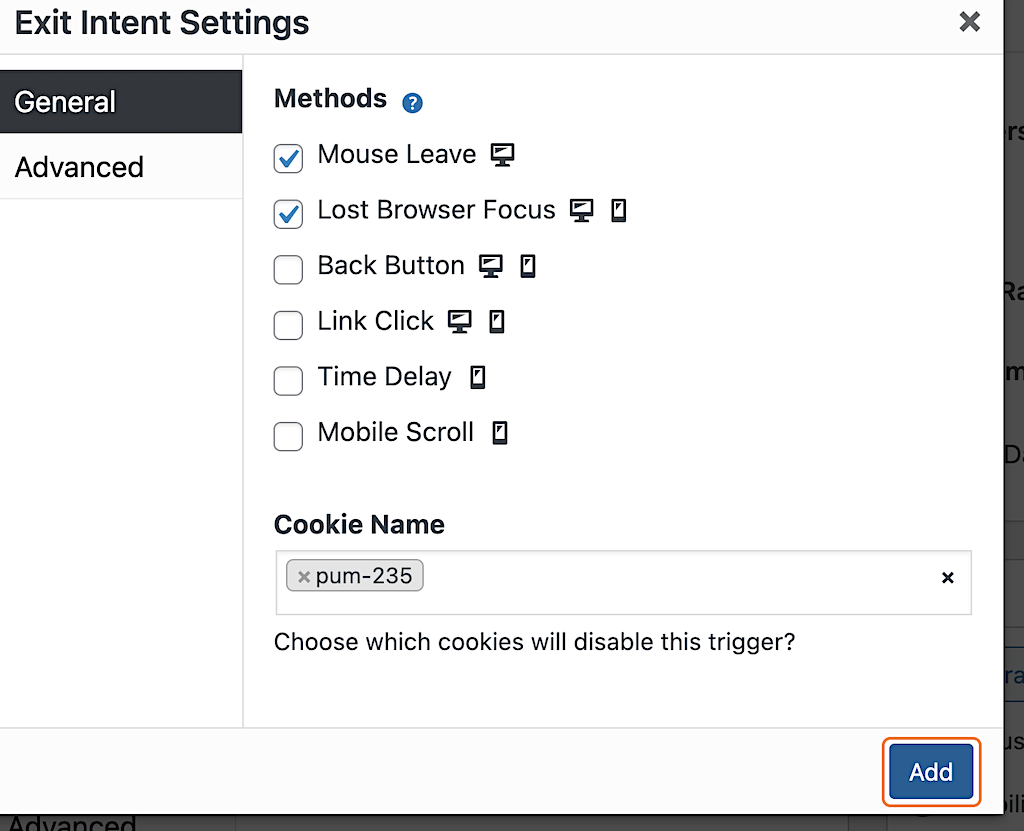
Learn More About the Methods #
For details on each Exit Intent trigger method, read our Exit Intent methods guide.
6. Click Publish to save your popup and make it go live #
Test Your Exit Intent Popup #
To see the Exit Intent popup, do one of the following:
- Move your cursor off the post or page.
- Click outside this browser window.
- Switch to a different tab.
- Change focus to a different app (e.g., Ctrl/Cmd + Tab from your browser to your email app).
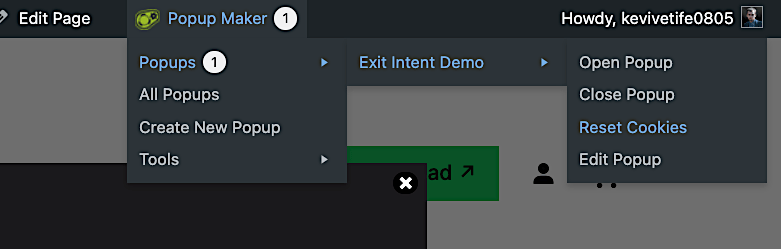
Need to re-test? Reset your cookies first #