









Overview #
If you’ve got a link to another page in your popup, this guide shows you the steps to:
1) Open that page in a new tab.
2) Close the popup after someone clicks the link.
Heads up! If you want to open another popup instead of a page in a new tab, go to Launch a Popup from a Popup or When a Popup Closes.
We’ll begin with a popup that has a simple link that opens a page in a new tab. Here’s what that HTML could look like.
<a href="https://www.website.com" target="_blank" rel="noopener">Link Text</a>
Here’s what we should see when we have a similar link in our popup, and we click on it.
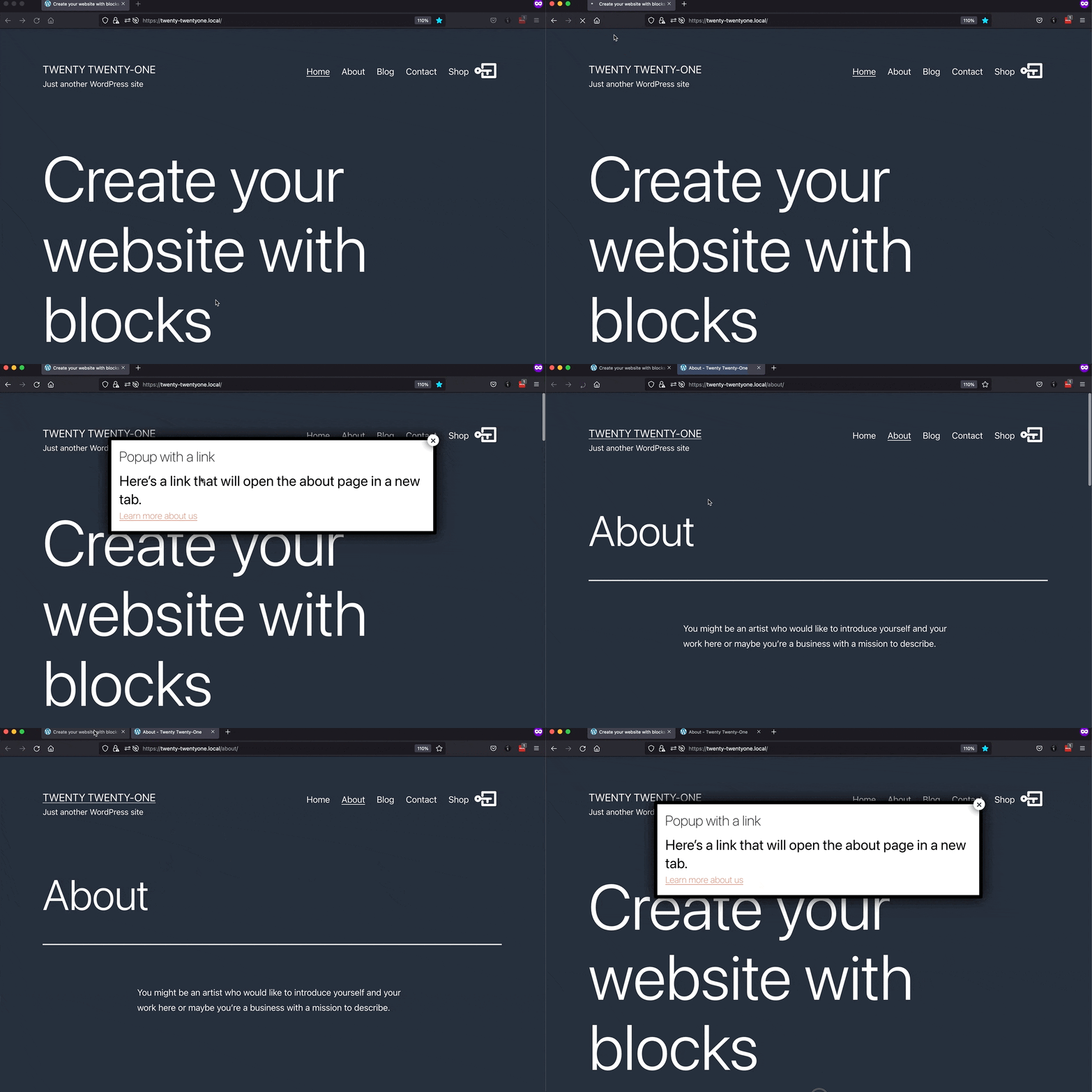
As you can see, a page opens in a new tab, but the popup stays open in the first tab. That’s only half of our goal.
Step 1: Add popmake-close and pum-close CSS classes #
Edit your link as HTML.
Add the Popup Maker CSS classes popmake-close and pum-close to your a tag. These classes tell Popup Maker to close the popup when we click that link.
Here’s our link now.
<a class="popmake-close pum-close" href="https://www.website.com" target="_blank" rel="noopener">Link Text</a>
Here’s a demo of what we should see after adding those 2 CSS classes.
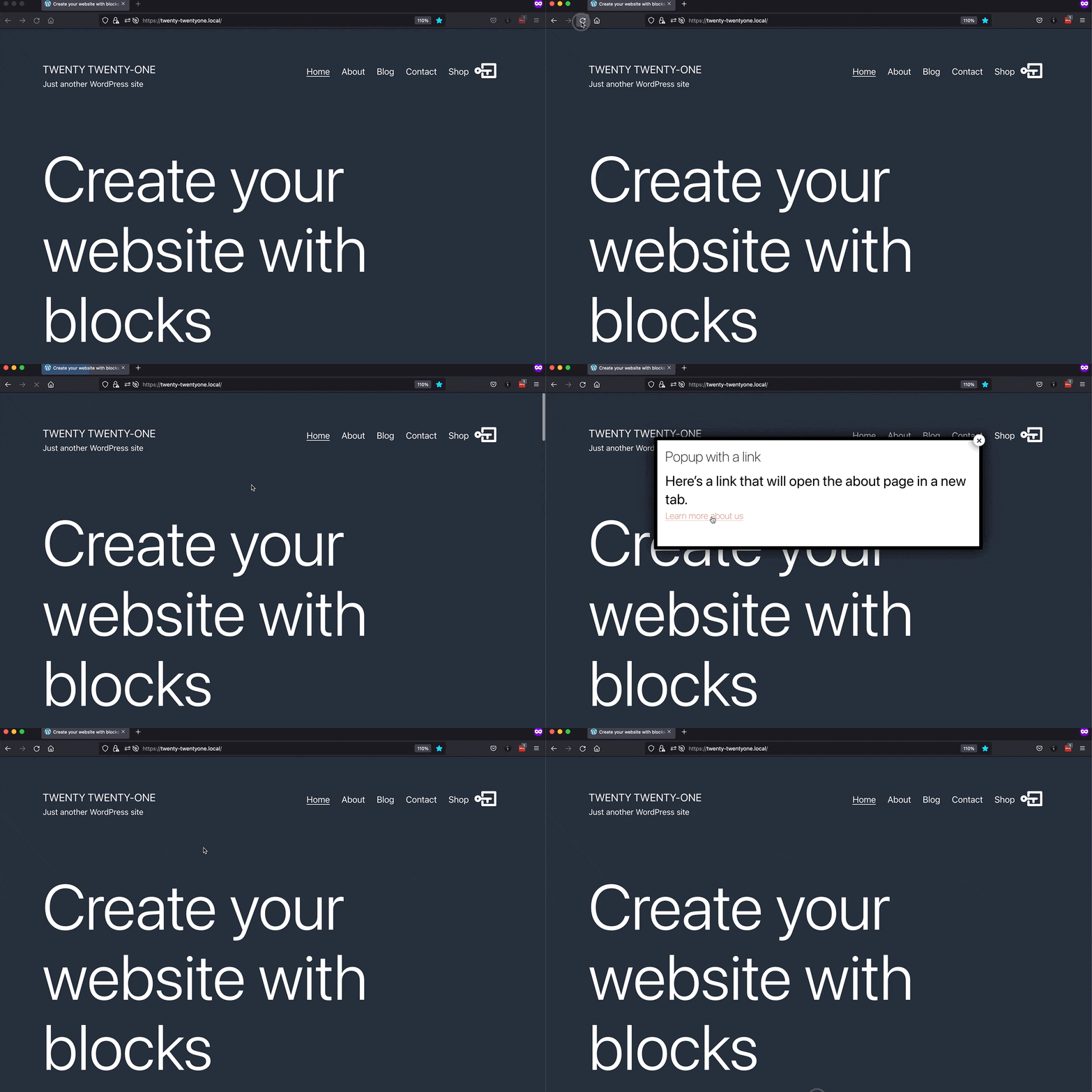
OK, cool. Our popup is closing now. But, our new tab isn’t opening anymore. What gives?
That leads us to the next step. We told Popup Maker to close the popup with 2 CSS classes. The missing ingredient is to tell Popup Maker to also open the link (i.e., do the link’s default behavior).
Step 2: Add pum-do-default CSS class or data-do-default attribute #
Add the pum-do-default class or use the data-do-default attribute to your a tag to open the new page.
Example 1: Here we add the pum-do-default class to open the link.
<a class="popmake-close pum-close pum-do-default" href="https://www.website.com" target="_blank" rel="noopener">Link Text</a>
Example 2: In this example, we add data-do-default="true" as its own link attribute to open the new page.
<a class="popmake-close pum-close" href="https://www.website.com" target="_blank" rel="noopener" data-do-default="true">Link Text</a>
Publish or Update your popup to save your changes.
Putting it all together, here’s what we should see after doing step 2.
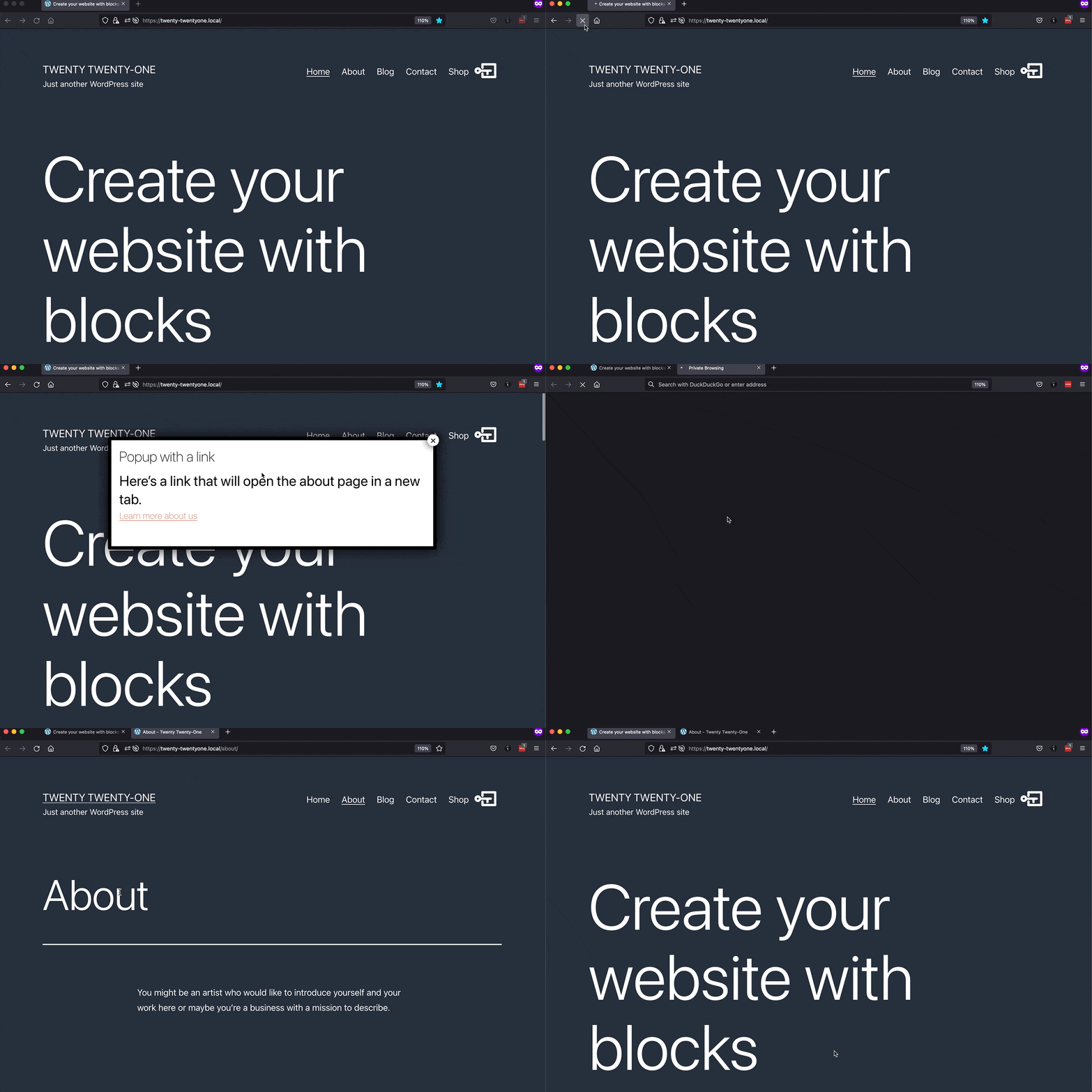
There we have it. The link in the popup opens a page in a new tab and the popup closes in the first tab. Mission accomplished 🎉
pum-do-default CSS class versus data-do-default attribute #
Which way is better? Both and neither. They’ll do the exact same thing. It’s just a matter of preference whether you want to use a data attribute or a CSS class name.
What about the close button shortcode? # #
We can accomplish the same thing using Popup Maker’s Popup Close Button shortcode.
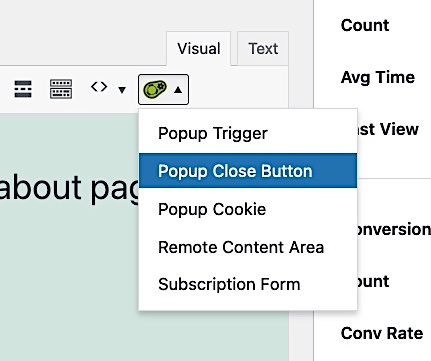
You can add the Popup Maker close button shortcode via the Popup Maker shortcode button menu in the classic editor’s toolbar.
If you don’t see the shortcode button menu in the toolbar, make sure your Popup Maker Settings > Misc > Disable the Popup Maker shortcode button setting is not checked (it should be off by default).
From the shortcode button menu, click Popup Close Button.
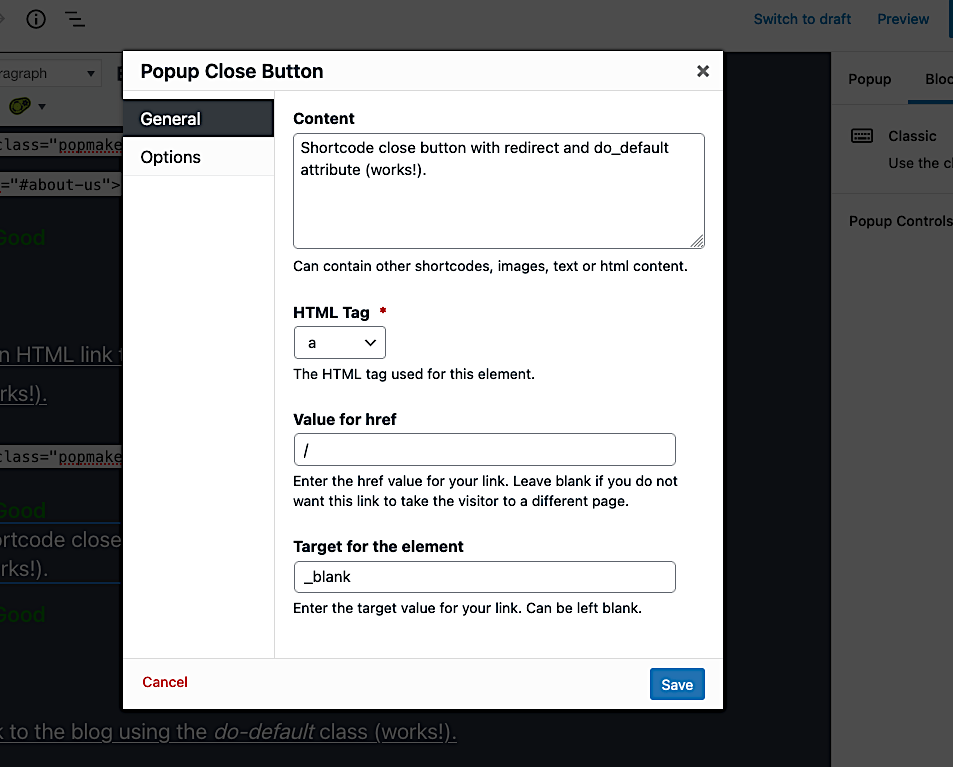
In the General tab, do the following:
- Type the text for your link in Content text area.
- Select
afor the HTML Tag. - Enter the URL for the link in the Value for href field.
- Type
_blankin the Target for the element field. - Click Save.
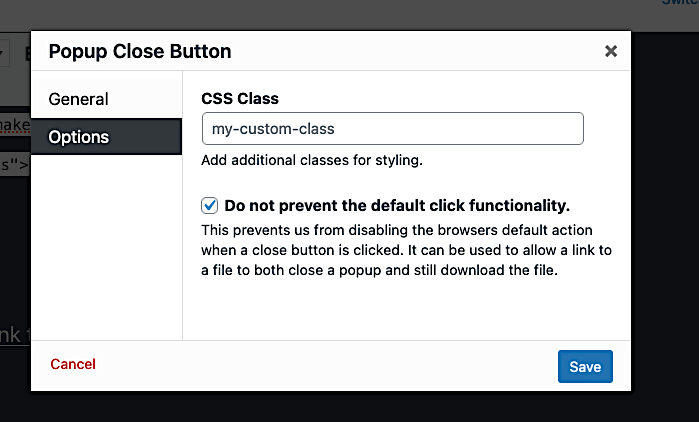
In the Options tab, check the Do not prevent the default click functionality setting (turn it on). Then, click Save.
Remember to click Publish or Update to save your changes.


