









Overview #
The Videos plugin extension to Popup Maker allows video to display inside a popup. Add a video URL to either the classic or block popup editor. Configure the video player settings from the editor’s Popup Settings box — Videos tab.
The video player controls can be customized with CSS from the plugin extension and MediaElementjs.com. The latter styles are used by WordPress to style video and audio controls for uploaded media.
Add a Video URL to the Popup Editor #
Once the Videos extension is installed and activated, create a new popup or edit an existing one. See the following article on how to add a new popup.
Related article: Add Popup submenu / Add New Popup button
Classic Popup Editor #
Add a video URL to the Visual tab of the classic popup editor. The video player can appear on the Visual tab, while the link URL will appear on the Text tab.

Figure 1 (above). A video URL added to the classic popup editor’s Visual tab may display the video player.
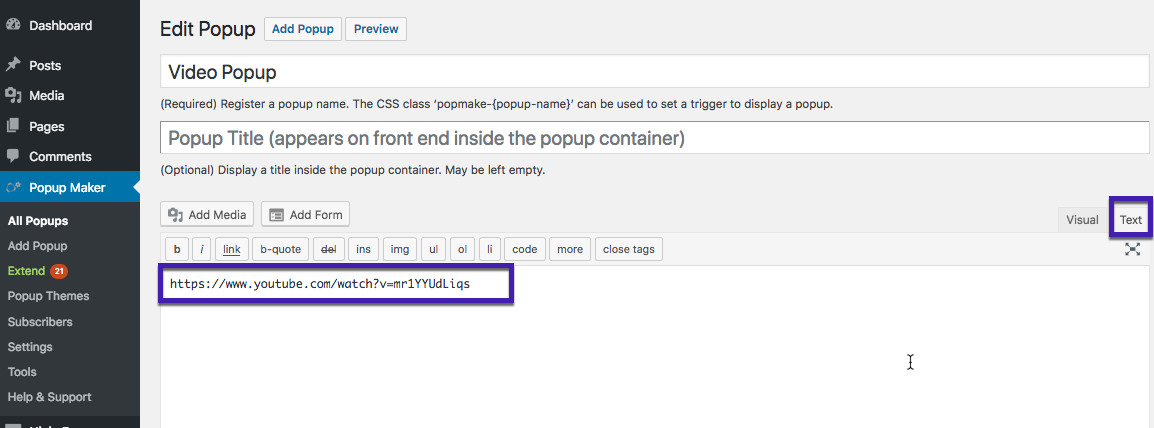
Figure 2 (above). The same video URL added to the classic editor’s Text tab just appears as a URL string.
Block Popup Editor #

When the block editor is enabled in Popup Maker, a video URL added in the classic editor is converted to a Classic block (green box above). The block editor can be enabled in the WordPress admin at:
Popup Maker >> Settings (submenu) >> General (tab) >> Enable Gutenberg Support (checkbox).
Related article: Settings submenu // Refer to the ‘General’ option.
Add a New Video URL in the Block Editor #

In the block editor, move the cursor below the popup name (or an existing block) to display a plus sign ( + ). Click the plus symbol to display a selection of the most used blocks. Choose either a YouTube or Embed block depending on the video source.
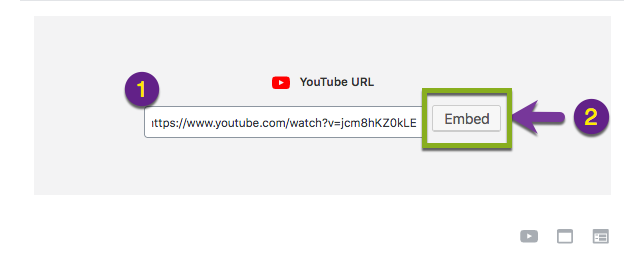
In the example above, a YouTube block was selected. [1] The video URL from YouTube is added in the URL field. [2] Select the Embed button to complete the video embed process.

In the screenshot above, the embedded video is added to the Visual block editor.
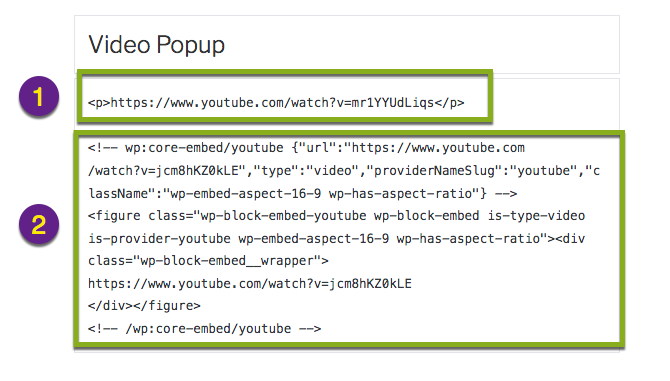
In the Code block editor shown above, [1] represents the first video URL saved in the Classic block, and [2] contains the HTML added by WordPress in the new YouTube block.
Videos Settings in the Popup Settings box #

Once a video URL is added to the editor, scroll down the page and locate the Popup Settings box. Select the Videos option tab to display the plugin option settings.
See: Video Popups Settings and Features for available settings, and plugin defaults.
Review and Update The Popup Settings #
A popup created with the Videos extension is no different than any other popup. It requires:
1) a popup name,
2) at least one trigger, and
3) a publication status of Published.
Refer to the following links for assistance to configure the remaining popup settings. Each new popup is preset with many initial settings. Review and update those settings to customize the behavior and style of your popup.
Related article: Create Your First Popup — Summary Guide
Related article: Popup Settings Box — Initial Popup Settings
Related article index: The Popup Editor


