









If you are not already familiar with using custom JavaScript, check out our getting started guide.
Example #
Let’s say you have an Auto Open popup that triggers as soon as people visit your site—no matter what page the person visits, you want the popup to open. That means the popup is a sitewide popup. Inside the popup are two images: clicking either one of the images puts you down Path A or Path B.
Once someone chooses their path, you don’t want them to continuously be spammed by your popup. So, you should set a cookie after they click an image—this method works with any HTML element (text, image, link, etc.).
Set Up Your Cookie #
First, set up your Cookie using the Manual JavaScript setting in the Popup Editor.
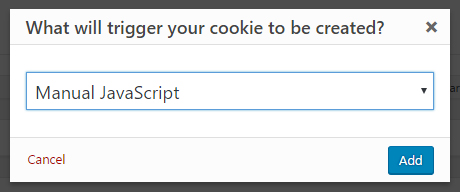
After clicking Add, you will be able to customize every aspect of how your Cookie will behave. For detailed explanations on all of the cookie settings and features, check out the Cookie Settings and Features Doc.
Add and Edit Manual JavaScript #
Copy, paste, and edit the code below either in your parent or child theme functions.php file, or use the My Custom Functions plugin.
The placeholder parameter ‘css-selector-for-the-close-button’ should be replaced with the HTML ID or class attribute assigned to the target page element. See the following related article for guidance on finding CSS selectors on your site.
Related article: Getting CSS Selectors
Replace the popup ID number in the code example with the value assigned to your popup. You can find the ID under the Popup Maker > All Popups > CSS Classes column. The integer value is appended to the class name ‘popmake-‘.
<?php
/**
 *  Note 1: Replace the placeholder string below ('css-selector-for-the-close-button')
 *  with the actual CSS selector (HTML ID or class attribute) assigned to the target
 *  attachment (for example, image or graphic).
 *
 *  Note 2: Replace the popup ID used below ('#popmake-123') with the
 *  value '#popmake-{integer}' used within your popup.  From the WP Admin, refer
 *  to 'Popup Maker' -> 'All Popups' -> 'CSS Classes (column)' -> to find
 *  the popup ID.
 *
 *  Add the following code to your theme (or child-theme)
 *  'functions.php' file starting with 'add_action()'.
 * -------------------------------------------------------------------------- */
add_action( 'wp_footer', 'my_custom_popup_scripts', 500 );
/**
 *  Close a popup by targeting a specific HTML element within a popup container.
 *
 * @since 1.0.0
 *
 * @return void
 */
function my_custom_popup_scripts() { ?>

    <script type="text/javascript">

        (function ($, document, undefined) {
            $('css-selector-for-the-close-button').click(function (e) {
                $('#popmake-123').trigger('pumSetCookie');
            });
        }(jQuery, document))

    </script><?php

}
View the source on GitHub.


